Get started
Dashboard
Use the Camp dashboard to see your workspaces, what is next, and widgets you arrange yourself.
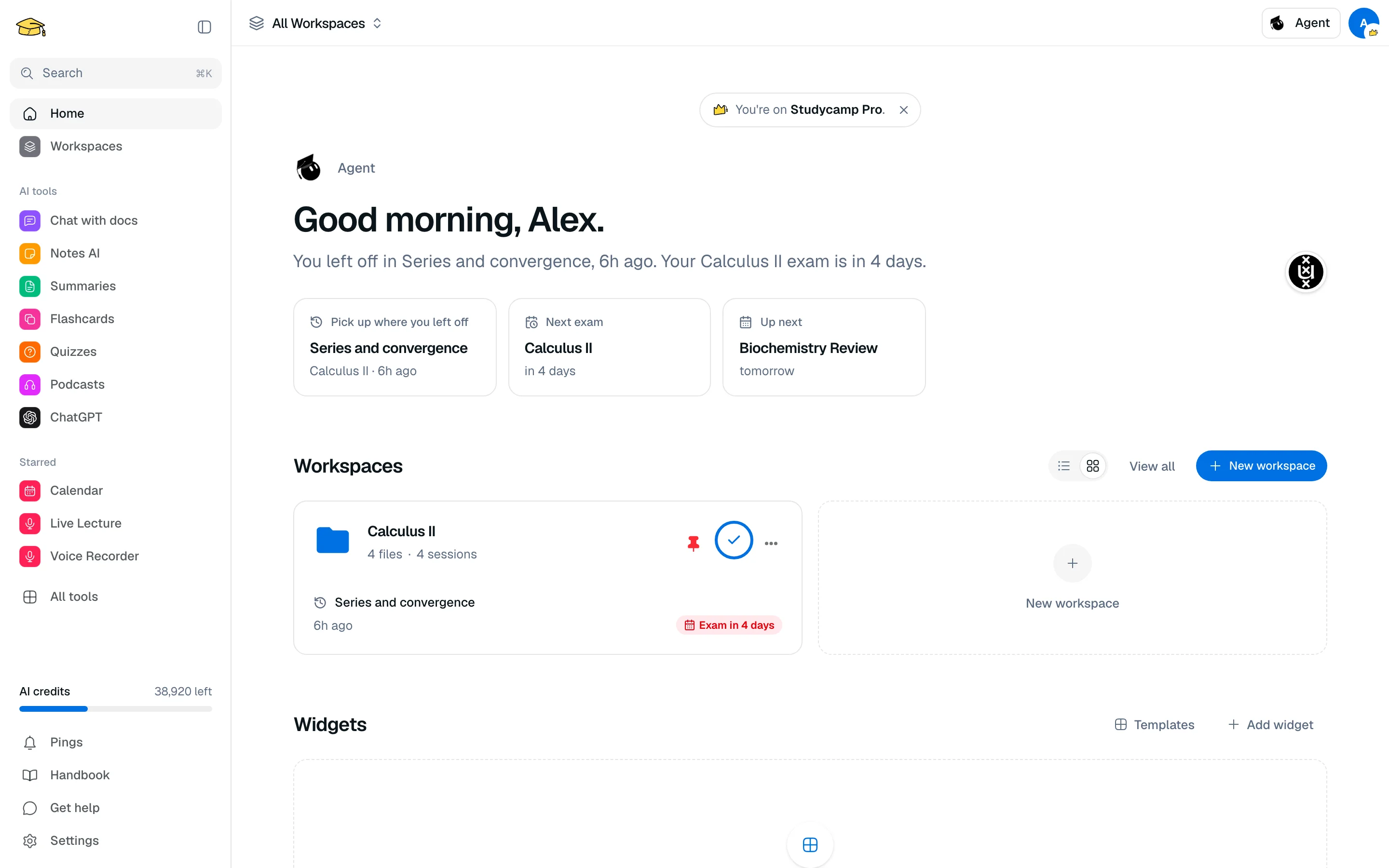
The dashboard at /camp is the first page after you sign in. It shows a greeting from Agent, your workspaces, and a grid of widgets that you choose and arrange.
What you see
- Plan bar. A small note showing your plan, with See upgrade options on Free.
- Agent greeting. A line about where you left off, your next exam or the next event on your calendar.
- Workspaces. Your workspaces as cards or a list, with New workspace and View all. Switch the layout with the view toggle.
- Widgets. The grid below the workspaces.
Add and arrange widgets
- In the Widgets section, click Add widget to open the gallery, then Add next to a widget.
- Click Arrange to drag widgets into a new order or remove them. Click Done when finished.
- Or click Templates to start from a layout for your field, such as Medicine, Law or Computer Science. Applying a template replaces your current widgets.
Available widgets: Bookmarks, Pomodoro, Calendar, Schedule, Voice Recorder, Study Streak, To-do, AI Usage, Notes, Recent activity and Countdowns.
Your layout is saved to your account, so it follows you across devices.
Workspace cards
Each card lets you pin, rename, recolour, move to a folder or delete a workspace from its menu. Pinned workspaces stay at the top. See Workspaces.