
Integrations
Connect Google Drive, Spotify, Zotero, Notion and Slack, and see which tools are built in.
Integrations connect Studycamp to tools you already use. Some bring material in, others send reminders out. The built-in tools need no setup.
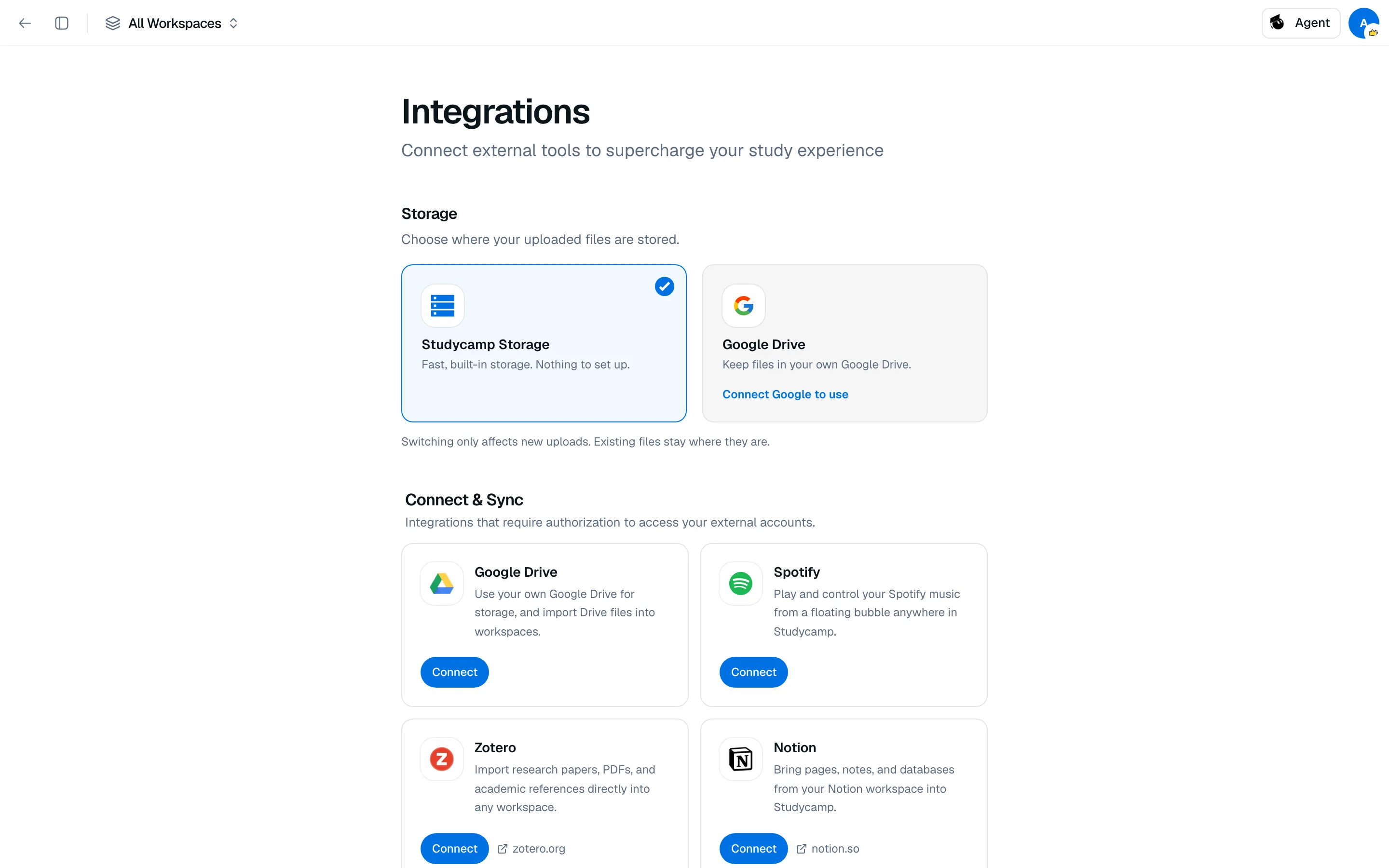
Connect a service
- Open Settings, then Integrations.
- Find the service under Connect & Sync and click Connect.
- Approve access on the service's own screen.
When it works the service shows Connected. Click Disconnect to stop. Imported content stays in Studycamp.
Services you can connect
| Service | What it does |
|---|---|
| Google Drive | Use your own Drive for storage, and import Drive files into workspaces. |
| Spotify | Play and control your music from a floating bubble anywhere in Studycamp. |
| Zotero | Import research papers, PDFs and references into any workspace. |
| Notion | Bring pages, notes and databases into Studycamp. |
| Slack | Get study reminders, streak alerts and Pomodoro nudges. |
Choose where files are stored
The Storage section lets you pick Studycamp Storage or Google Drive for uploads. Switching only affects new uploads. Existing files stay where they are. See Storage providers.
Built-in tools
Under Built-in Tools, these are always on: Wolfram Alpha, Adobe PDF, Excalidraw and ChatGPT.
If a connection fails
A toast like "Failed to connect Notion. Try again" means authorization did not finish. Try again and approve every permission requested. More fixes are in Troubleshooting.