
Chat with docs
Ask questions about your files and follow numbered citations back to the exact page.
Тази страница все още не е преведена. Показва се английската версия.
The AI Chat tool inside a study session answers from your own files. Studycamp searches your material first, then replies with citations you can click.
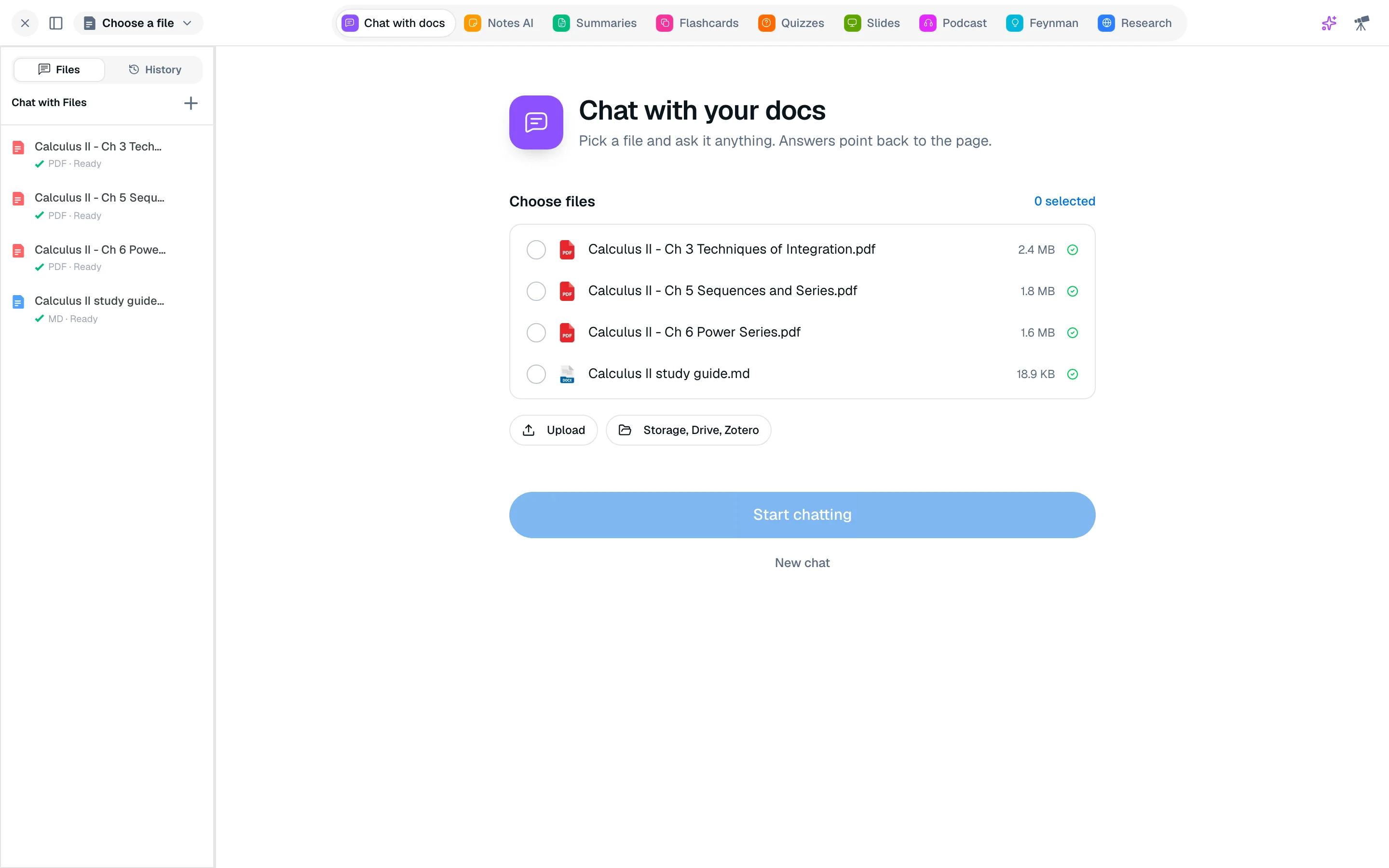
Ask a question
- Open a study session and select AI Chat (key 1 by default).
- Choose the files to chat with from the sidebar, under Files. Add more with Add file.
- Type your question in Ask about your documents... and send it.
You can start from a suggestion such as "Summarize the key points", "Explain this like I'm new to it" or "Quiz me on this". Choose General chat in the sidebar to ask something that is not about a file.
Follow a citation
Answers include numbered citations. Click one and the file opens in a PDF reader tile beside the chat, scrolled to the cited passage. If Studycamp cannot highlight the exact passage, it still opens the source page and tells you so.
You can also send text you highlighted in the reader, or a screenshot of a selected area, as the question.
Files and indexing
A file is ready for chat once it shows "Ready". While a file shows "Indexing...", wait a minute and ask again. If indexing fails, use Retry indexing in the sidebar. See file indexing.
History
Open the History tab in the sidebar to reopen an earlier conversation, or start a New chat. Conversations are saved per workspace.
Cost
Each message costs 50 credits. Free accounts get 1,500 credits a month, so about 30 messages if chat is all you use. See usage and credits.