
Kanban
Plan revision, essays and group projects on boards with columns, cards, steps and due dates.
Тази страница все още не е преведена. Показва се английската версия.
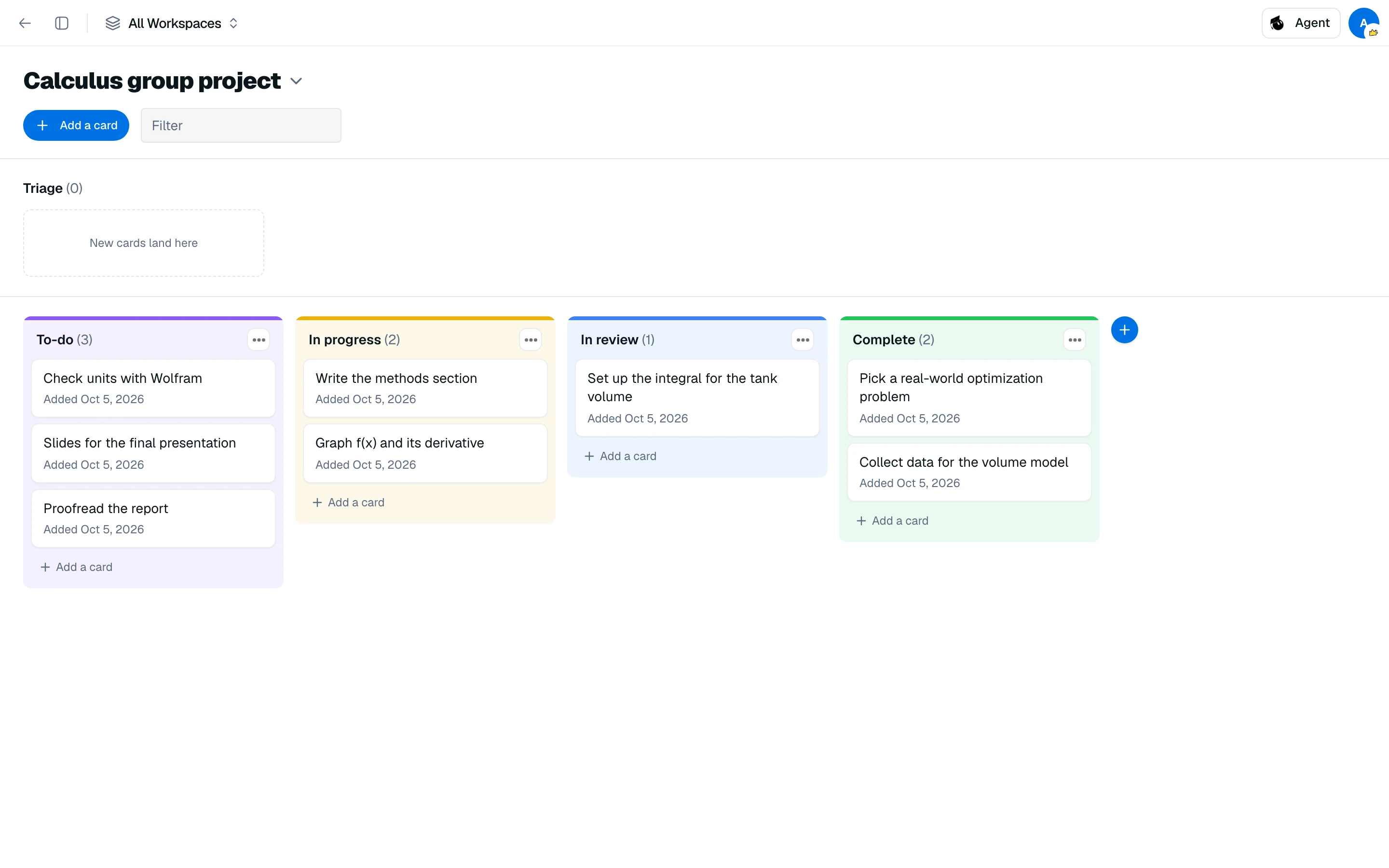
Kanban, in the Backpack, lets you sort work into columns and drag cards as they progress. Use a board per project, such as exam revision or an essay.
Create a board
- Open Kanban from your Backpack or the sidebar.
- Click New board (or Create your first board) and name it.
A new board starts with three columns: To do, In progress and Done. Use the board menu to rename or delete a board, and to switch between boards.
Add cards
Click Add a card, type a title and press Enter. New cards land in Triage, a lane for cards you have not sorted yet. Drag a card into a column when you are ready, or between columns as work moves.
Use the Filter box to find cards by text.
Edit a card
Open a card to set:
- Column: move it from the list.
- Due: pick a date, or Clear date.
- Notes: free text.
- Steps: a small checklist, shown as
done/total.
Click Delete card to remove it.
Manage columns
Click Add column to create one. The Column options menu has Rename, Move left, Move right and Delete column, and a color from eight options. Deleting a column moves its cards back to Triage.