Kom i gang
Dashboard
Use the Camp dashboard to see your workspaces, what is next, and widgets you arrange yourself.
Denne side er ikke oversat endnu. Viser den engelske version.
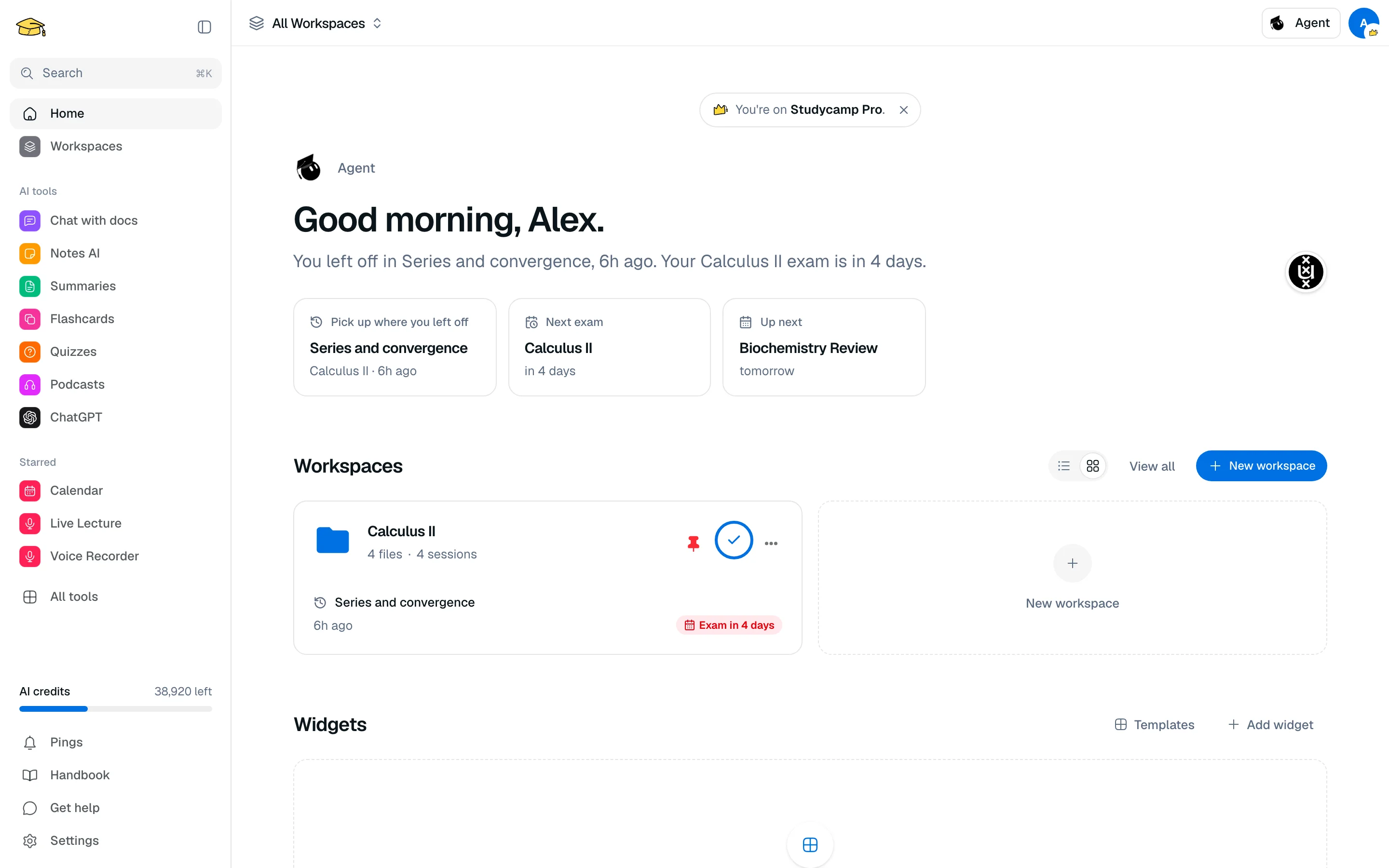
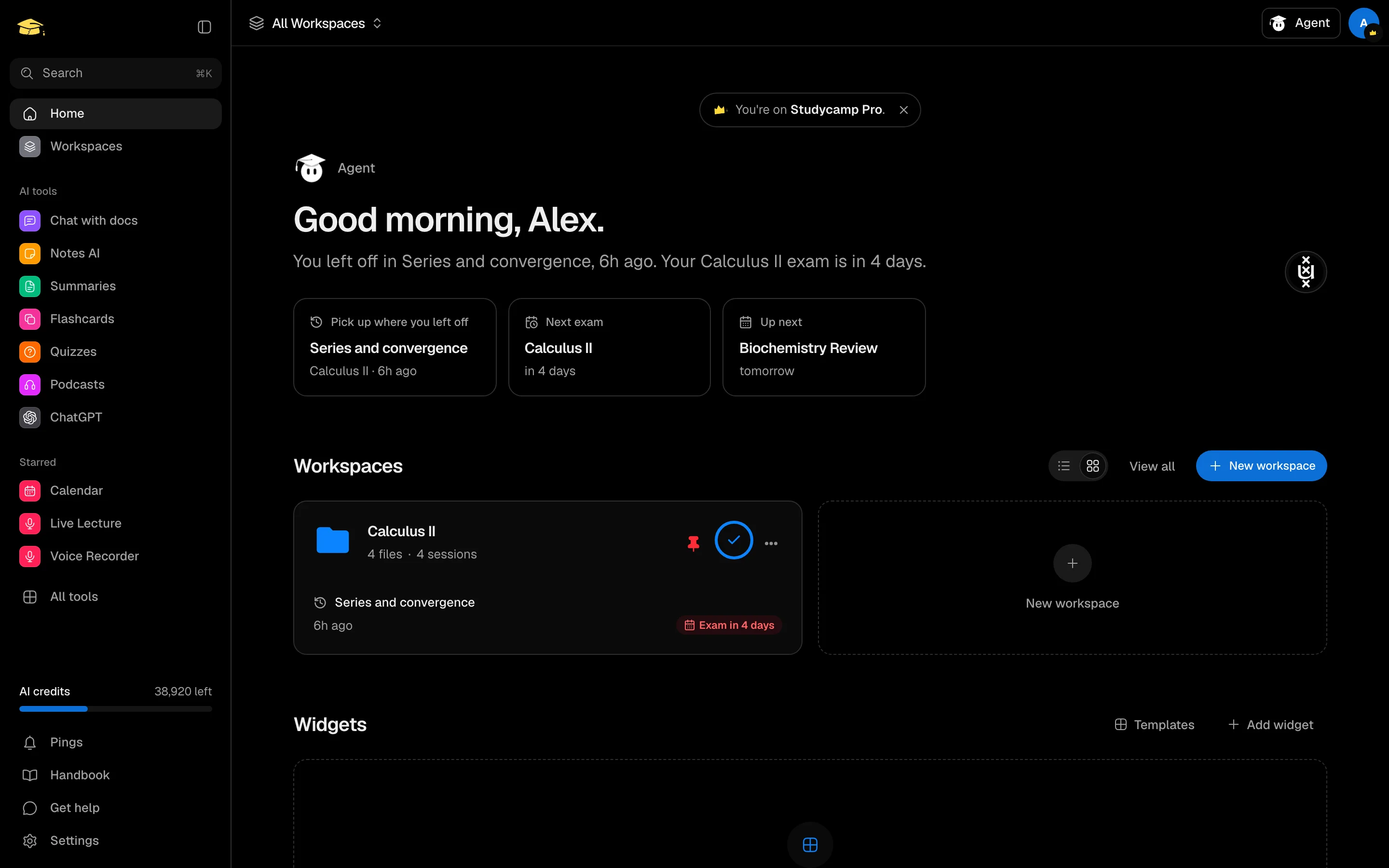
The dashboard at /camp is the first page after you sign in. It shows a greeting from Agent, your workspaces, and a grid of widgets that you choose and arrange.
What you see
- Plan bar. A small note showing your plan, with See upgrade options on Free.
- Agent greeting. A line about where you left off, your next exam or the next event on your calendar.
- Workspaces. Your workspaces as cards or a list, with New workspace and View all. Switch the layout with the view toggle.
- Widgets. The grid below the workspaces.
Add and arrange widgets
- In the Widgets section, click Add widget to open the gallery, then Add next to a widget.
- Click Arrange to drag widgets into a new order or remove them. Click Done when finished.
- Or click Templates to start from a layout for your field, such as Medicine, Law or Computer Science. Applying a template replaces your current widgets.
Available widgets: Bookmarks, Pomodoro, Calendar, Schedule, Voice Recorder, Study Streak, To-do, AI Usage, Notes, Recent activity and Countdowns.
Your layout is saved to your account, so it follows you across devices.
Workspace cards
Each card lets you pin, rename, recolour, move to a folder or delete a workspace from its menu. Pinned workspaces stay at the top. See Workspaces.