
Notes
Write notes with folders, Cornell layouts and inline AI, or have Studycamp draft a note from your files.
Denne side er ikke oversat endnu. Viser den engelske version.
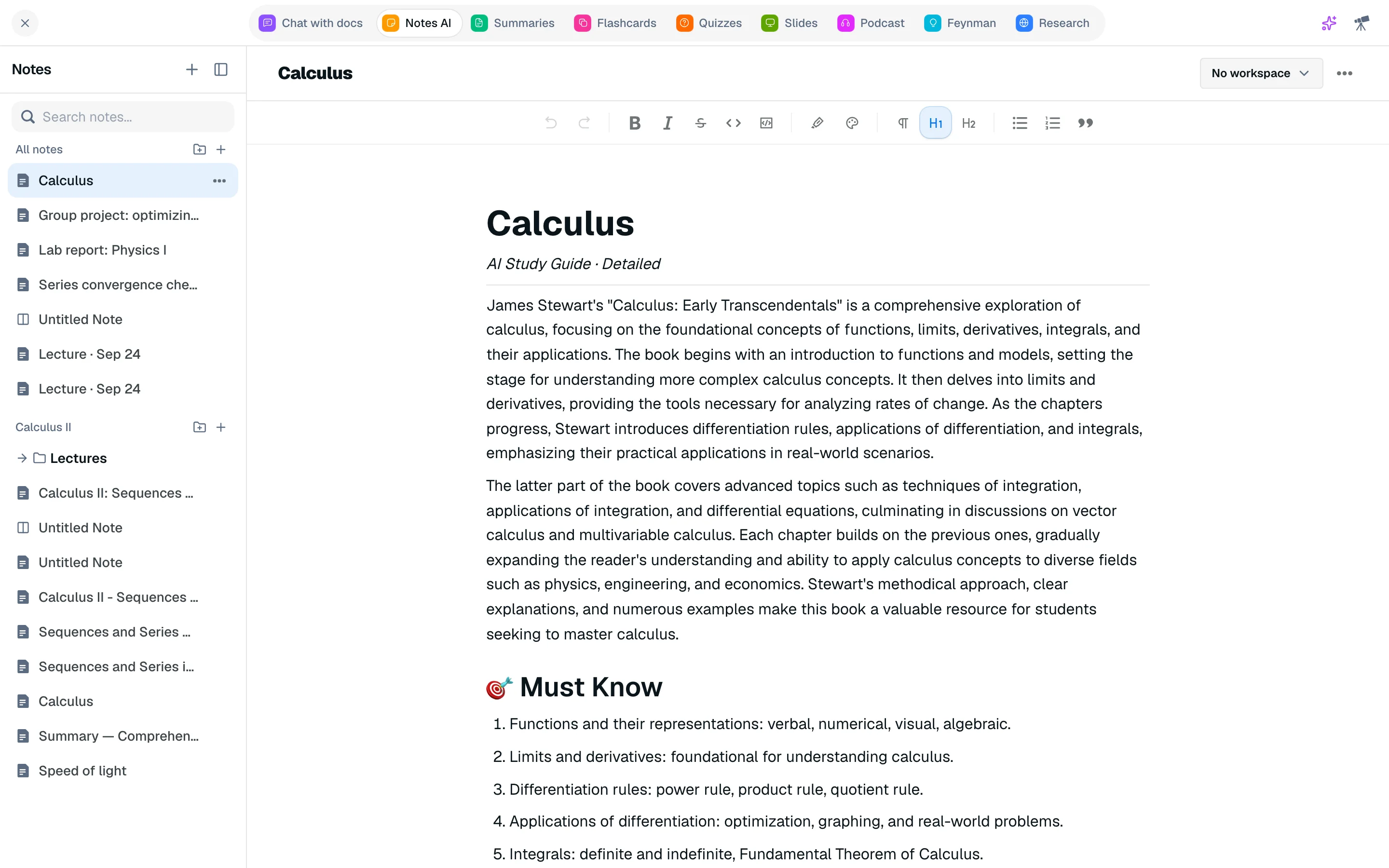
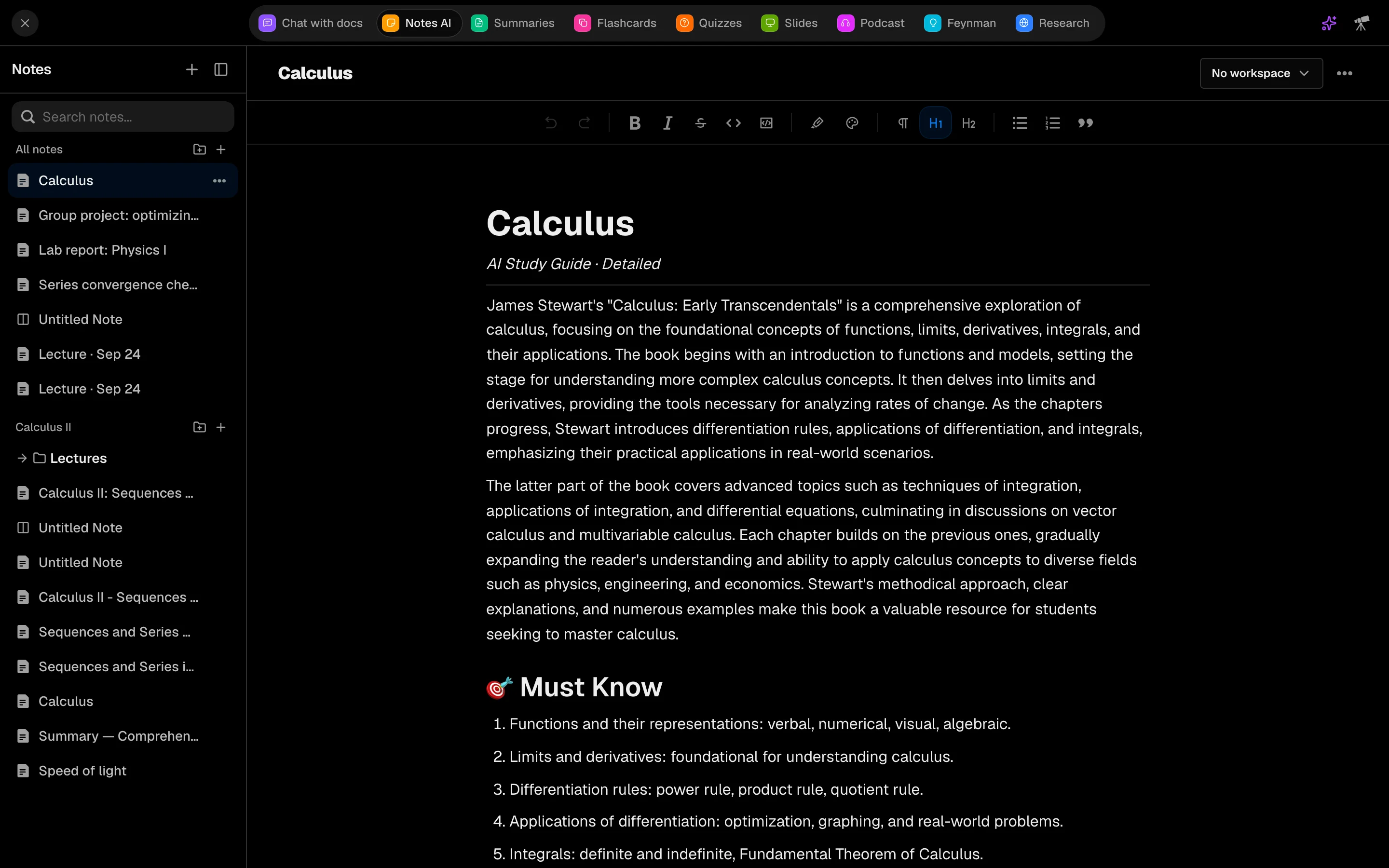
Notes AI, in the Backpack, is where you write your own notes. It is a rich text editor with folders, a Cornell layout, and AI that works on the text you select.
Open Notes
Open Notes AI from your Backpack or the sidebar, at /camp/tools/notes. The old /camp/backpack/notes address redirects there. Notes also work as a tile inside a study session.
Create a note
- Click New note, or pick a template on the empty screen: Blank Document or Cornell Notes.
- Type a title and start writing. Notes save as you type.
- Use folders (New Folder) to group notes, and Pin to Favorites on the ones you reopen often.
Cornell notes give you three areas: Questions / Cues, Lecture Notes and Summary. A Switch to Classic Layout option (and back to Notion) changes how the editor is laid out.
Write
Use Add Block for headings, lists, quotes, code blocks, tables, math formulas and YouTube embeds. The toolbar adds highlight and text colors, links and images.
Use AI on your text
Select text and a menu offers Rephrase, Expand, Shorten, Fix grammar, Explain and Continue. Review the result, then Accept or Discard. Ask Agent sends the selection to the Agent panel.
To draft a whole note, click From files, pick up to 10 files, choose Outline or Cornell, and click Write my note. Your files must be indexed first. This costs 300 credits per note.
Share a note
Open the share menu and click Publish to web, then Copy Link. Click Make private to turn the link off.