
Kanban
Plan revision, essays and group projects on boards with columns, cards, steps and due dates.
Denne side er ikke oversat endnu. Viser den engelske version.
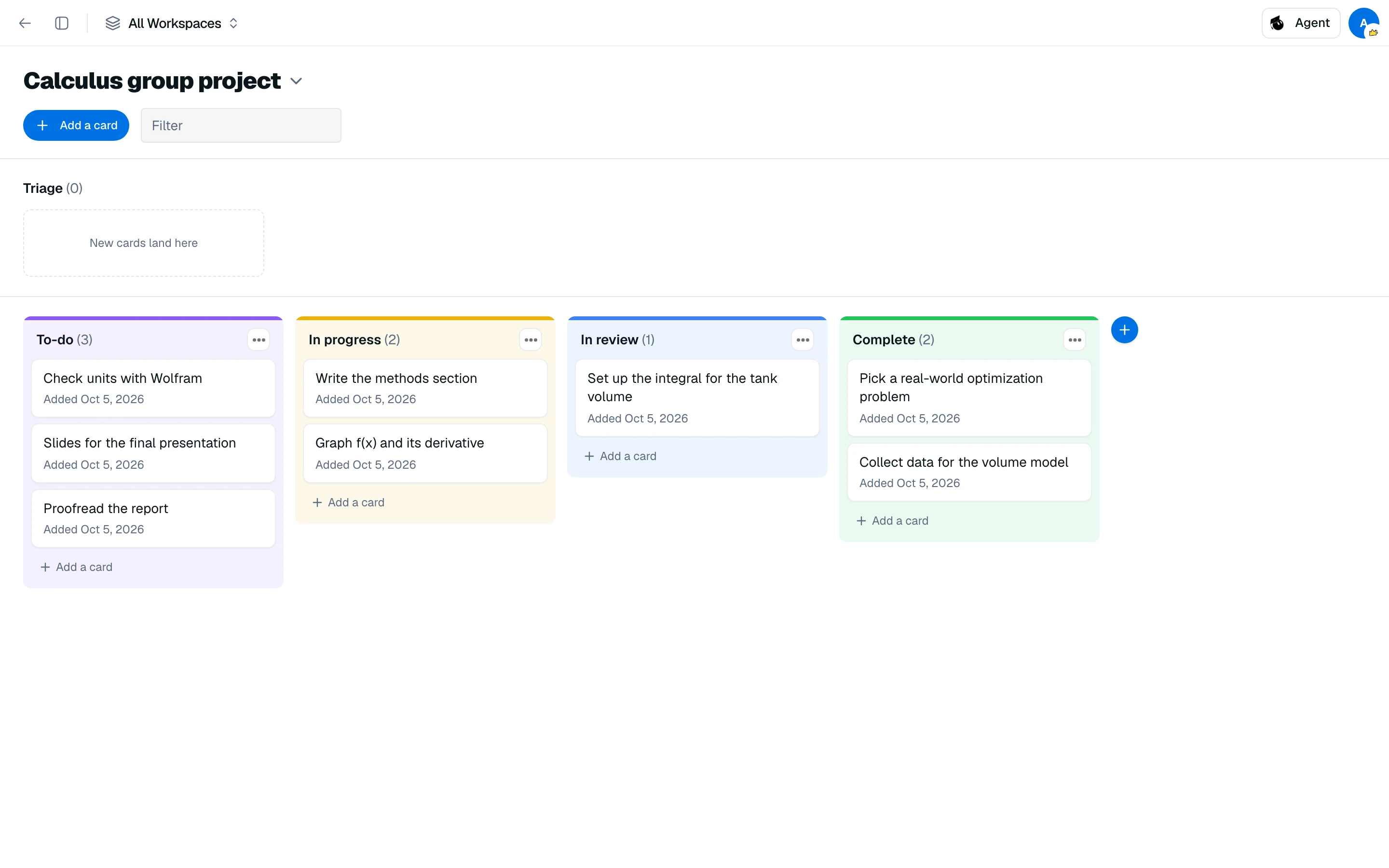
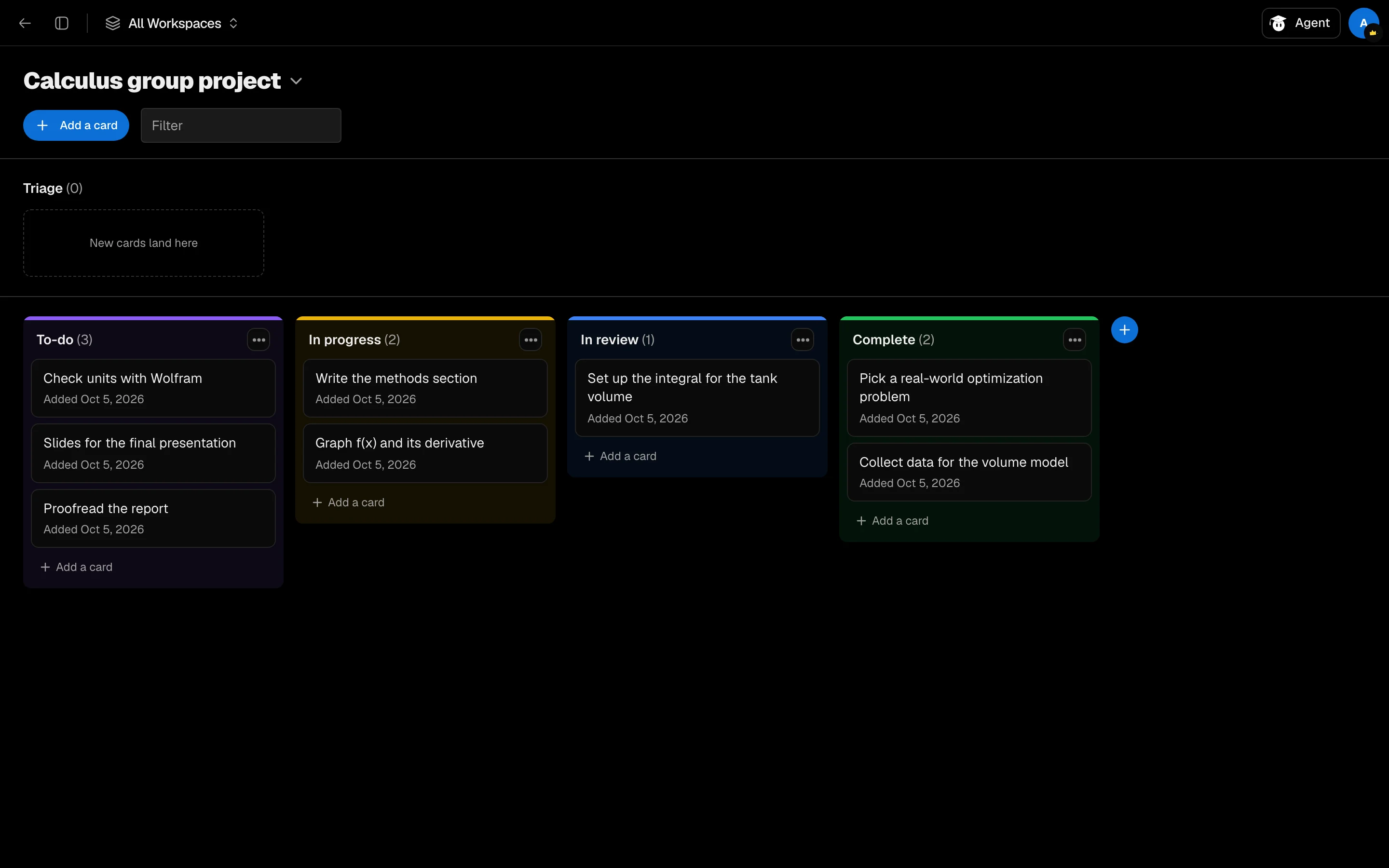
Kanban, in the Backpack, lets you sort work into columns and drag cards as they progress. Use a board per project, such as exam revision or an essay.
Create a board
- Open Kanban from your Backpack or the sidebar.
- Click New board (or Create your first board) and name it.
A new board starts with three columns: To do, In progress and Done. Use the board menu to rename or delete a board, and to switch between boards.
Add cards
Click Add a card, type a title and press Enter. New cards land in Triage, a lane for cards you have not sorted yet. Drag a card into a column when you are ready, or between columns as work moves.
Use the Filter box to find cards by text.
Edit a card
Open a card to set:
- Column: move it from the list.
- Due: pick a date, or Clear date.
- Notes: free text.
- Steps: a small checklist, shown as
done/total.
Click Delete card to remove it.
Manage columns
Click Add column to create one. The Column options menu has Rename, Move left, Move right and Delete column, and a color from eight options. Deleting a column moves its cards back to Triage.