Upload and storage
Upload files, organise them in Storage, and understand file limits, quotas and the trash.
Ova stranica još nije prevedena. Prikazujemo englesku verziju.
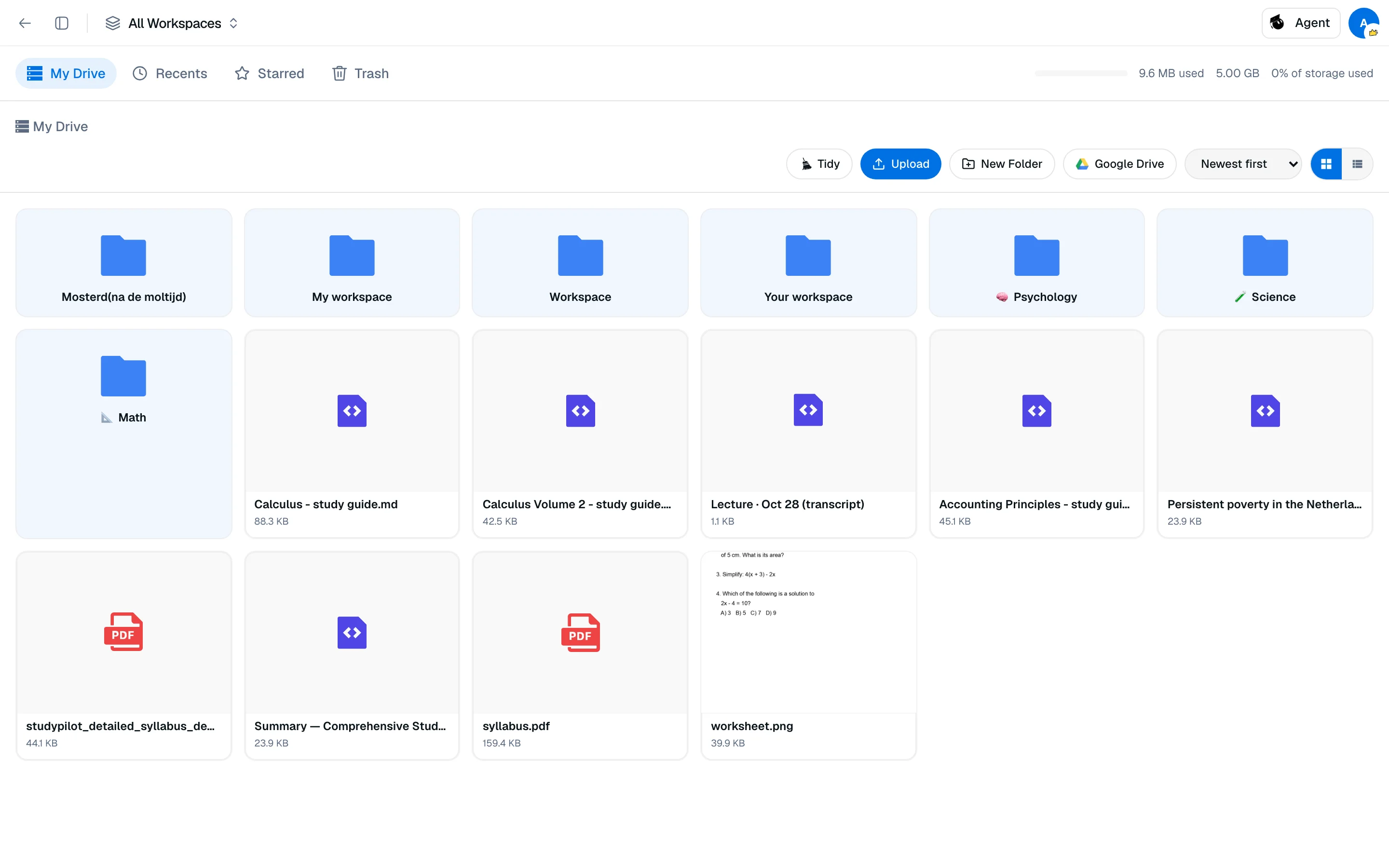
Every file you upload is kept in Storage at /camp/storage. Workspaces link to those files, so one upload can be used in many courses.
Upload files
You can upload from two places:
- Storage. Click Upload in the toolbar.
- A workspace. Click Add files, then choose Upload, From Storage, Google Drive or Zotero. You can also drag files onto the Files section.
Files go to Storage either way. A file uploaded from a workspace is placed in a folder named after that workspace.
Limits:
- Up to 100 MB per file.
- Workspaces accept PDF, Word, PowerPoint, Markdown, text and images. Only some types can be read by the AI. See File indexing.
- Free uploads one file at a time. Pro can upload several at once.
Storage quota
| Plan | Storage |
|---|---|
| Free | 1 GB |
| Pro | 100 GB |
A bar in the sidebar shows how much you have used. Only files stored on Studycamp count. Files you keep on your own Google Drive do not. See Storage providers. Files in Trash do not count toward the quota. If you are over the limit, a banner appears and new uploads are blocked until you free space or upgrade. Nothing is deleted.
Organise files
Storage has four views in the sidebar: My Drive, Recents, Starred and Trash. In My Drive:
- New Folder creates a folder. Drag files into folders, or rename them from the menu.
- Sort by name, date or size, and switch between grid and list.
- Click a file for a preview. PDFs offer Open PDF Viewer to read and annotate.
Tidy
Tidy suggests clearer file names and folders. It is included with paid plans and does not use credits. You can run up to 10 previews per UTC day.
- Click Tidy and choose Whole Storage, This folder and subfolders, or Selected files.
- Click Preview changes. A review covers up to 200 files.
- Uncheck any suggestion you do not want, then click Apply selected.
Tidy keeps file extensions, never changes file contents, and does not touch your existing folders. Citations, annotations and workspace links stay attached after a rename or move.
Trash
Select files and click Move to Trash. In Trash you can Restore them or Delete forever. Files left in Trash are removed automatically after 30 days.