PDF reading
Read PDFs in a study session, then highlight areas, add sticky notes, bookmark pages and ask AI about what you select.
Ova stranica još nije prevedena. Prikazujemo englesku verziju.
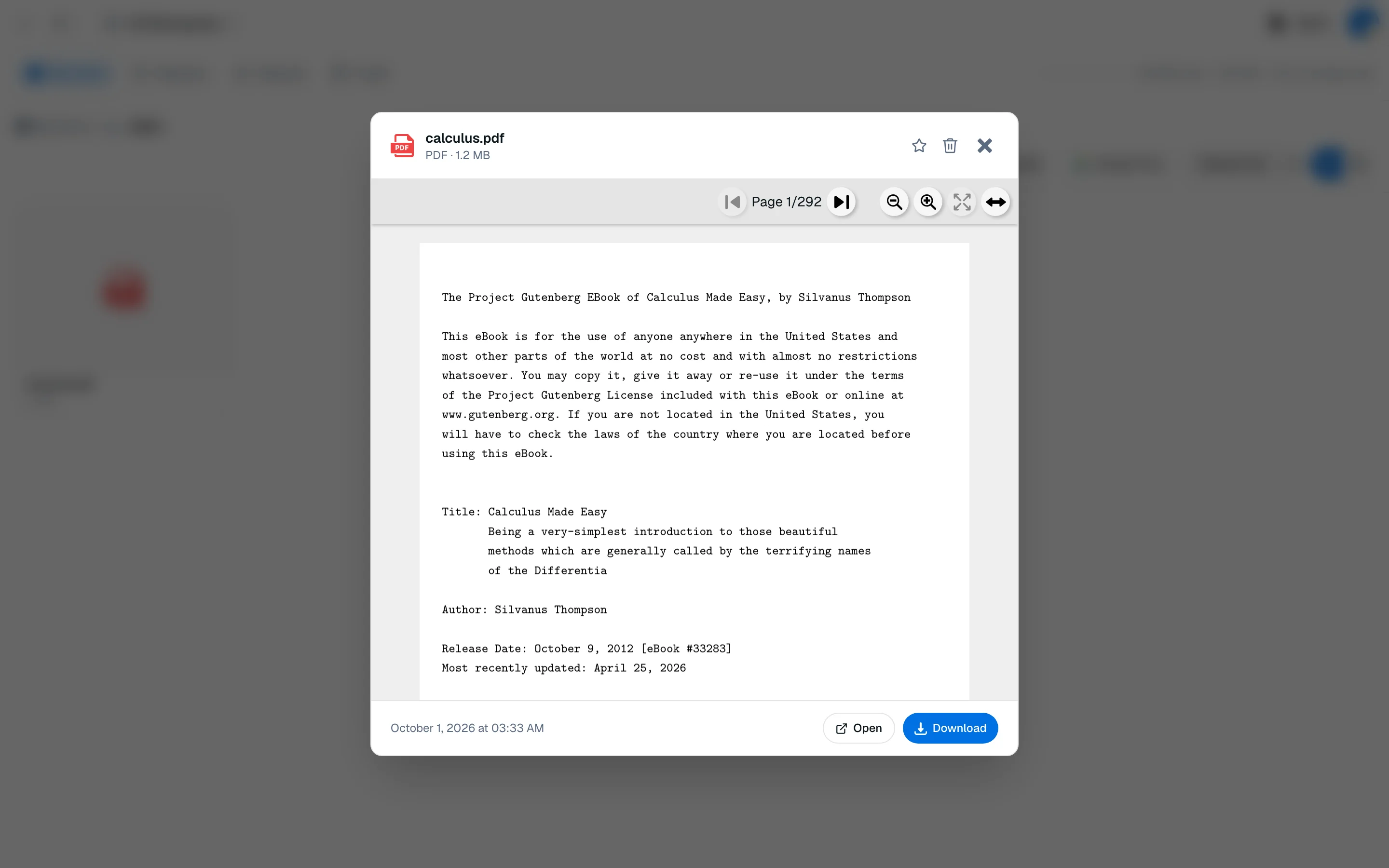
The PDF viewer opens next to your AI tools in a study session. You can mark up the document as you read, and everything is saved per file.
Navigate
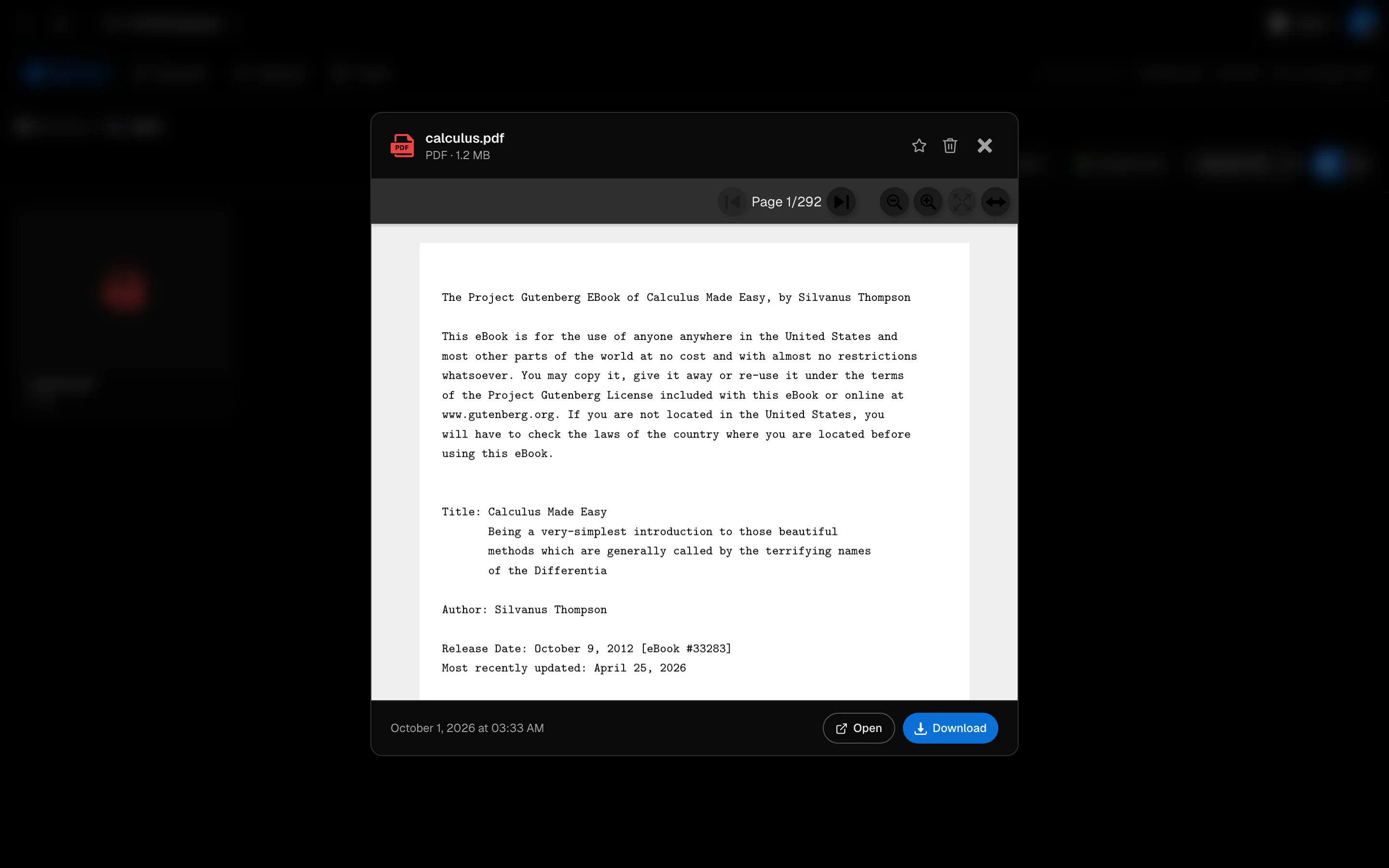
Use the page arrows, zoom in and out, Fit to width, and Search to find text in the document. Press Enter for the next match and Shift Enter for the previous one. Download saves the PDF. Original PDF colors turns off the dark-mode tint.
Highlight an area
- Turn on Area select from Tools.
- Drag a rectangle over the part of the page you want.
- Pick a color and click Highlight area.
The same popup has Ask AI about this, which sends the selection to chat, and Define key term. Highlights are drawn over regions of the page, not selected as words.
Sticky notes
Open Sticky notes, click + Add, and click anywhere on the page. Type your note and click Save. Click a sticky later to edit or delete it.
Bookmarks
Click the ribbon on a page to Bookmark this page. You can add an optional label and change it with Edit bookmark.
See everything you marked
The side lists show Highlights, Sticky notes and Bookmarks with counts. Click an item to jump to its page.
Read without the study tools
For a distraction-free reader, use Adobe PDF at /camp/adobe-pdf. Choose From storage or Upload new, and use Fullscreen.
Scanned PDFs without a text layer can still be viewed, but their text cannot be indexed or searched. See File indexing.