Workspaces
Create a workspace for each course, add files, and start study sessions from one page.
Tätä sivua ei ole vielä käännetty. Näytetään englanninkielinen versio.
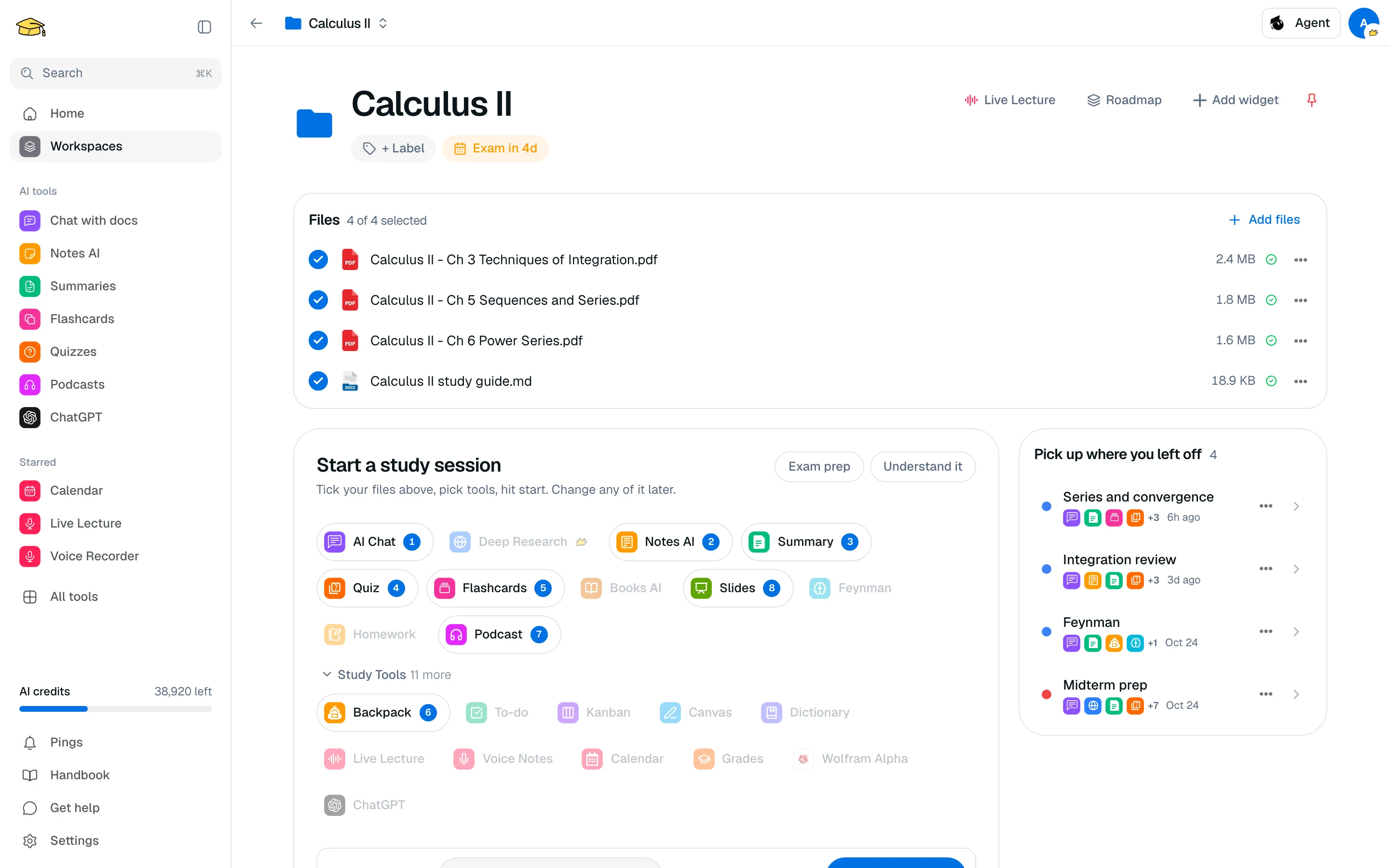
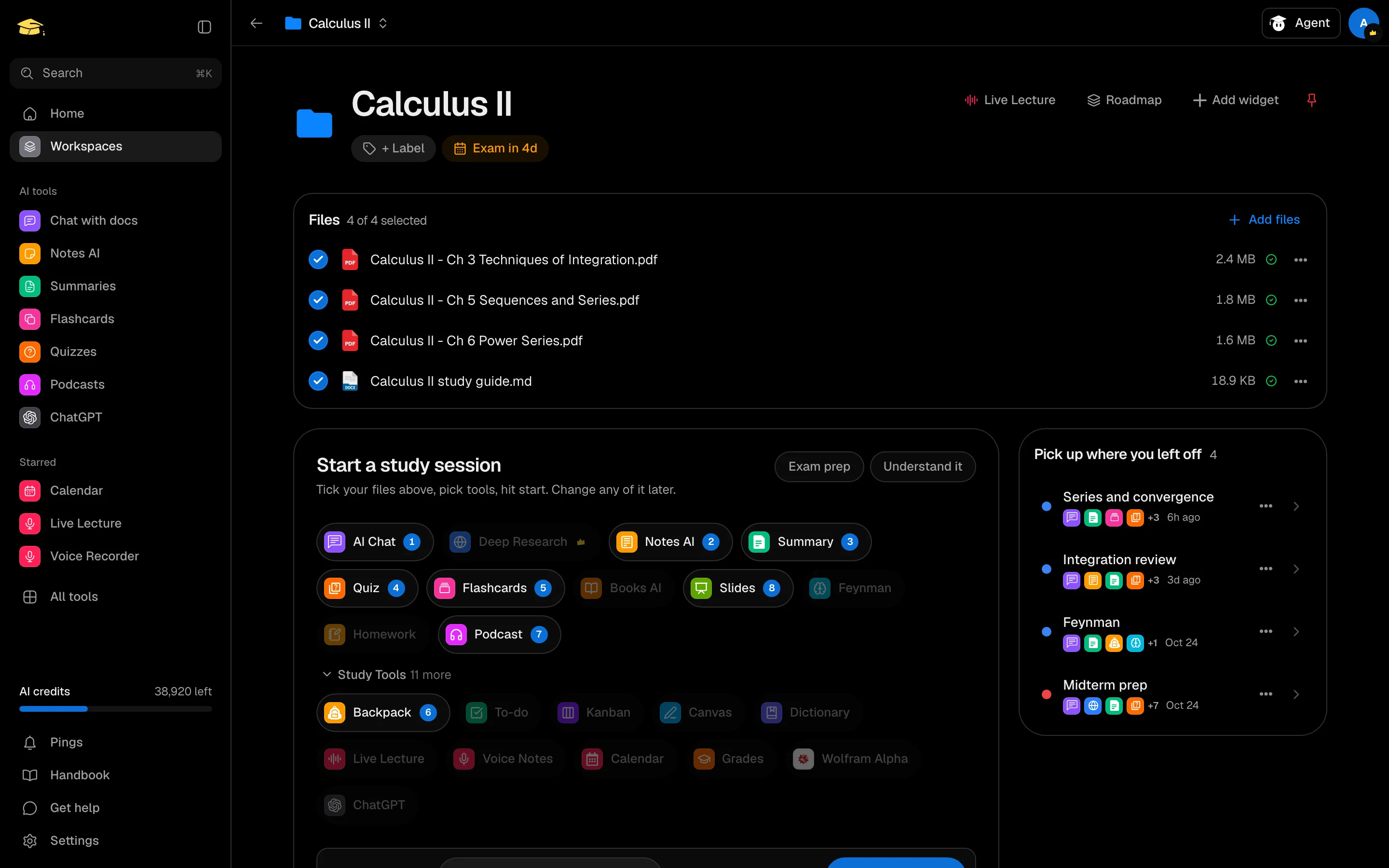
A workspace holds everything for one course or project: its files, study sessions and optional widgets such as tasks and notes. Keeping courses separate means the AI tools only work from the material you picked.
Create a workspace
- Open Workspaces, or use the dashboard.
- Click New workspace.
- Enter a Name (for example "Linear Algebra"), optionally choose an icon, and pick a Color.
- Click create. The workspace opens.
To build several courses at once from a study plan, see Course setup.
Add files and start studying
The top of a workspace is where the work happens:
- In Files, click Add files to upload, choose from storage, or import from Google Drive or Zotero. Supported types are PDF, Word, PowerPoint, Markdown, text and images, up to 100 MB each.
- Tick the files you want in the next session. Each file shows a status badge while it is read.
- Choose your tools in the session composer and click Start session.
- Earlier sessions are listed next to the composer. Open one to continue where you stopped.
Label, exam date and pin
The workspace header lets you edit things in place:
- Click the name to rename it.
- Click + Label to set a status: On track, Needs attention, Exam soon or Done. Labels let you filter the workspaces list.
- Click Set exam date to show an "Exam in N days" badge. It turns amber within 7 days and red within 3.
- Use the pin button to keep the workspace at the top.
Add widgets
Click Add widget to add Files, Tasks, Notes, Study sessions, Recordings, Overview, Calendar or Countdown to the workspace page. Use Use for new workspaces in the gallery to save your layout as the default. Workspace layouts are stored in your browser, so a new device starts fresh.
Organise the list
On the Workspaces page, use New folder to group workspaces, for example by year or semester. Use the workspace menu to move a workspace into a folder. Switch between grid and list view at the top.
Limits
| Free | Pro | |
|---|---|---|
| Workspaces | 3 | Unlimited |
| Study sessions per workspace | 1 | Unlimited |
When you reach a limit, a banner offers an upgrade. Nothing is deleted.
Deleting a workspace permanently deletes the workspace and its data. Removing a single file from a workspace only unlinks it and keeps it in Storage.