
Whiteboard AI
Describe an idea or pick your files and let AI draw an editable mind map, flow or timeline.
Tätä sivua ei ole vielä käännetty. Näytetään englanninkielinen versio.
Whiteboard AI draws a board from a prompt or your files. Everything it draws is a normal object you can move, resize, recolor and rewrite. It is a Pro feature.
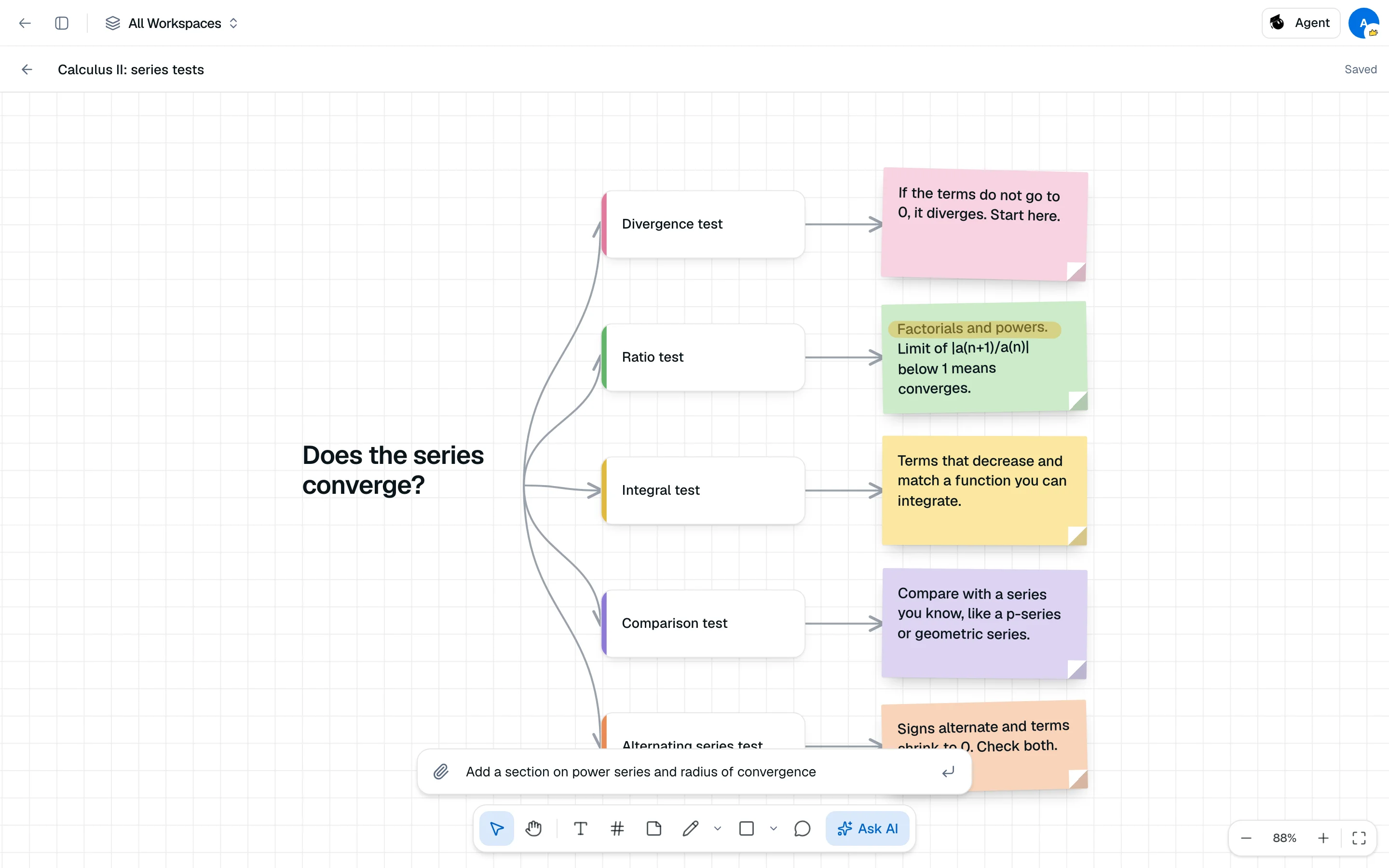
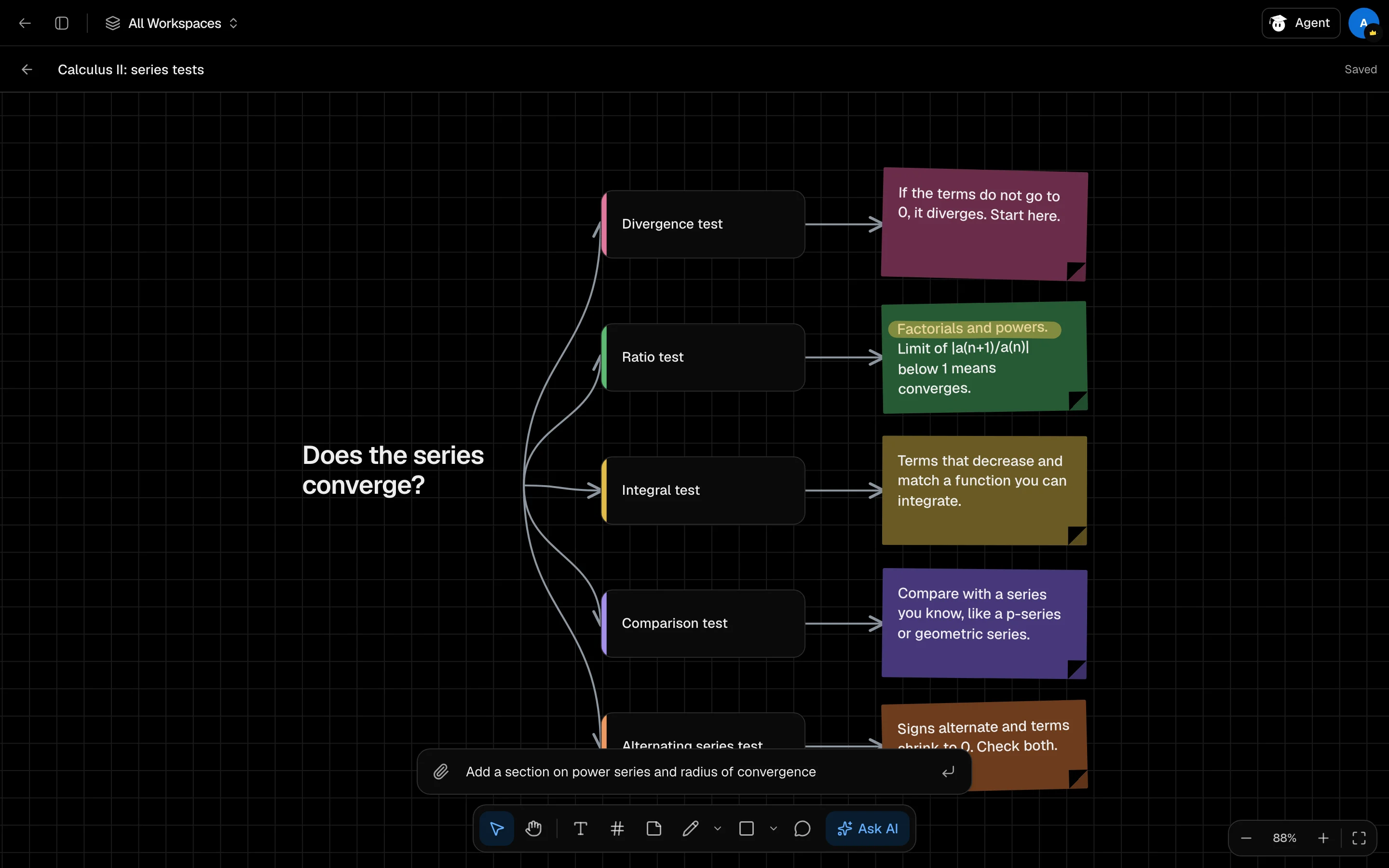
Create a board
- Open /camp/whiteboard and click New whiteboard. Or add Whiteboard AI as a tile in a session.
- Click Ask AI.
- Describe what to draw, such as "a mind map of chapter 3", or click Choose files to attach up to 10 files.
- Pick a Layout: Auto, Mind map, Columns or Timeline.
- Click Draw.
Select a few items first and the panel reads "About N selected", so Ask AI expands only those. Each request costs 300 credits and is refunded if it fails.
Draw and edit
The toolbar has Select (V), Pan (H), Text (T), Frame (F), Sticky note (S), Pencil (P), Pen (Shift P), highlighter (Shift H), shapes (R rectangle, O oval, L line, Shift L arrow) and Comment (C).
| Shortcut | Action |
|---|---|
| ⌘ Z / ⌘ Shift Z | Undo / redo |
| ⌘ D | Duplicate selection |
| ⌘ A | Select all |
| Delete | Delete selection |
Use Ctrl instead of ⌘ on Windows and Linux. Hold Space to pan.
Zoom
Use the controls at the bottom right: zoom out, the percentage (click for 100%), zoom in, and Fit to content. Shortcuts: ⌘ +, ⌘ -, ⌘ 0 and Shift 1.
Boards save as you work. The header shows Saving..., Saved or Not saved.