
Study sessions
Open a focused screen that holds your files and AI tools, and pick up exactly where you left off.
This page is not translated yet. Showing the English version.
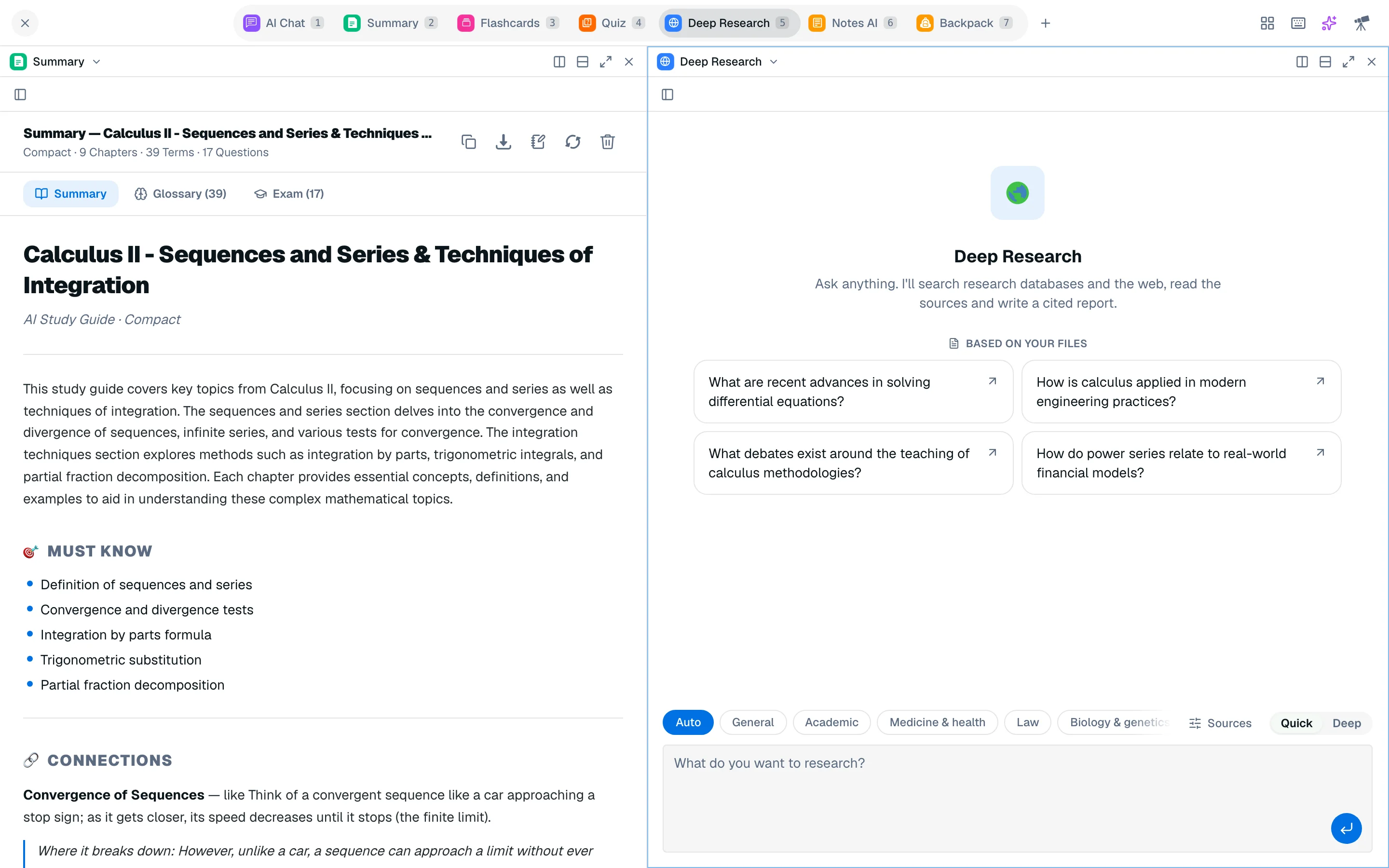
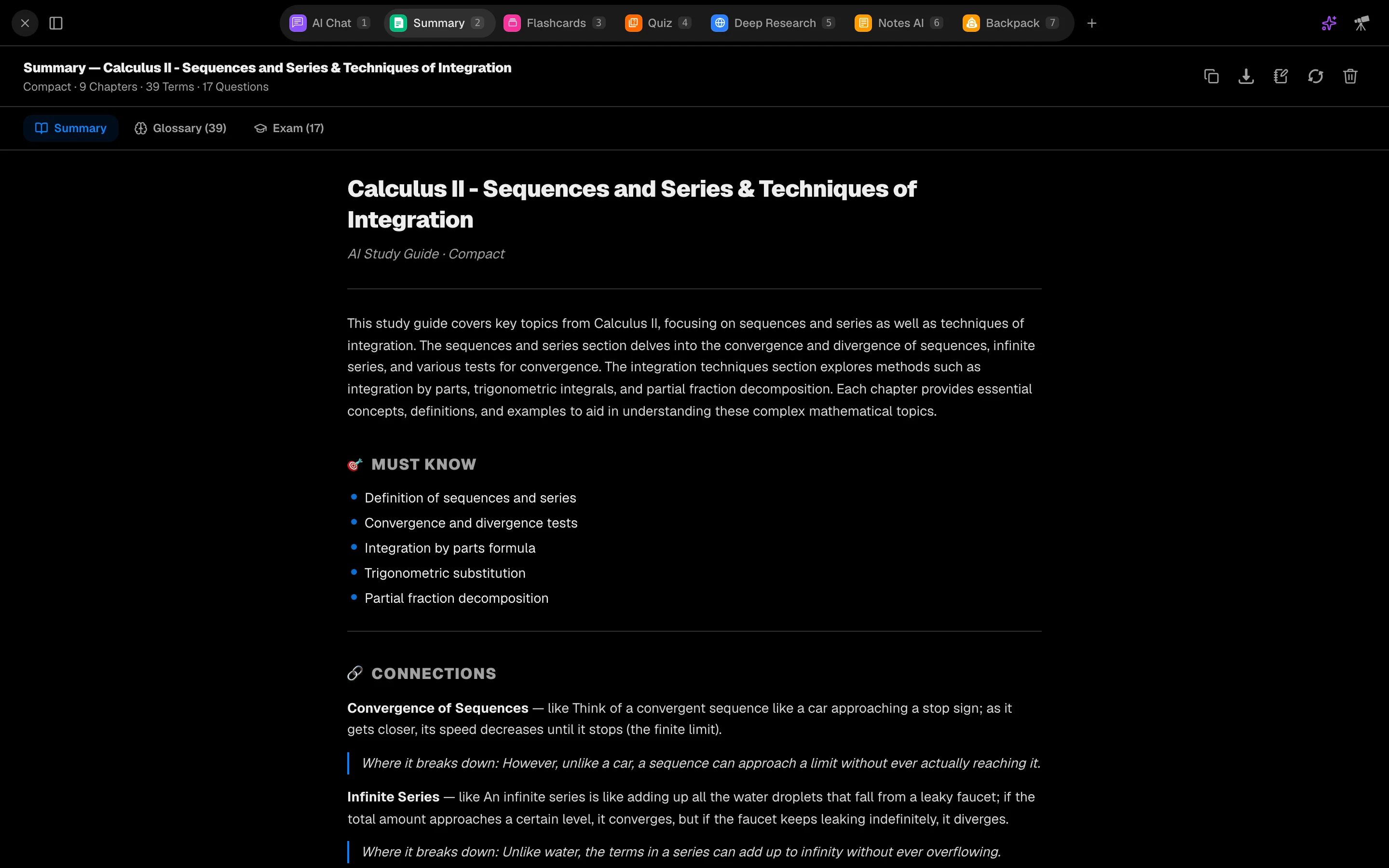
A study session is the screen where you study. Your files, AI tools and notes sit in one place, and Studycamp saves the layout so closing the tab never costs you your place.
Start a session
Sessions live inside a workspace.
- Open a workspace from /camp/workspaces. You can also open /camp/study-session and choose a workspace there.
- In the file list, tick the files the session should use.
- In Start a study session, pick your tools. Exam prep and Understand it are one-click sets, and My default loads your saved setup.
- Click Start session.
If you tick no files, the composer warns that tools have nothing to read. You can still start for chat and notes.
The session screen
The top bar holds the tool tabs. Each tab has a number key, so press 1 to 8 to switch tools without touching the mouse. The defaults are:
| Key | Tool |
|---|---|
| 1 | AI Chat |
| 2 | Notes AI |
| 3 | Summary |
| 4 | Quiz |
| 5 | Flashcards |
| 6 | Backpack |
| 7 | Podcast |
| 8 | Slides |
A session holds up to 8 tools. Click + in the tab bar to add one, or Edit tools to swap tools and change the tab order. Tools marked with a crown need Pro, and clicking one opens the upgrade prompt instead of running it.
On the right of the bar you will find the Bots menu, the layout menu, the keyboard shortcuts button and the Open Agent button. See Tiles and layouts to use two tools side by side.
Manage your sessions
The session list next to the composer shows every session in the workspace. Each one can be renamed, given a color or deleted. Deleting a session removes its progress for good.
What is saved
Studycamp saves your layout as you work: which tools are open, which files are selected, and which quiz, deck, summary or note each tool has open. Leave and come back, and the session looks the same.
Limits
| Free | Pro | |
|---|---|---|
| Sessions per workspace | 1 | Unlimited |
When a Free workspace already has a session, creating another shows "You've hit your session limit". Delete the old session or upgrade.