
Sounds and music
Mix ambient sounds with their own volumes, or play your Spotify from a floating player while you study.
This page is not translated yet. Showing the English version.
Sounds and the Spotify player keep audio going while you work. Sounds are in your sidebar; the player appears once you connect Spotify.
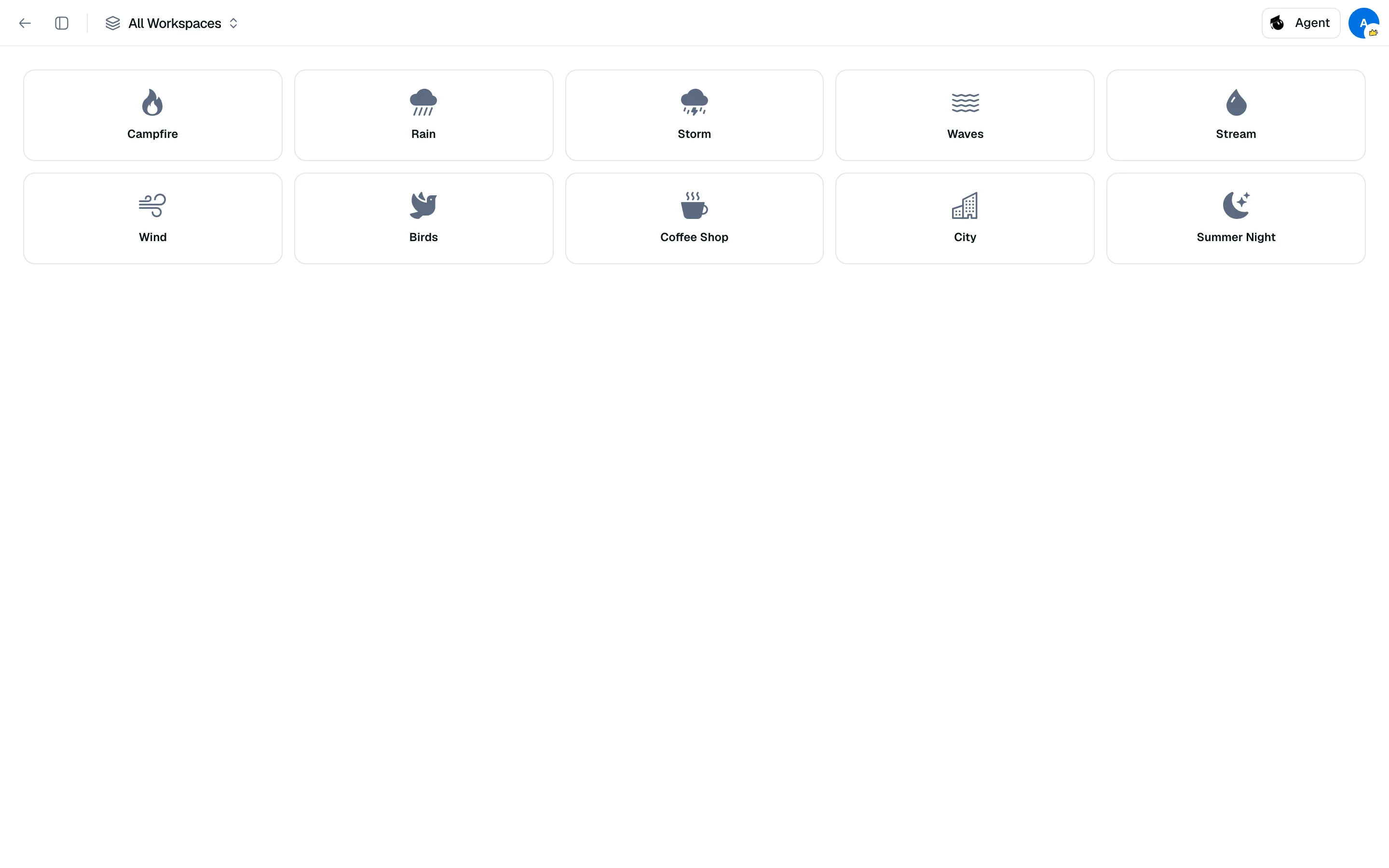
Ambient sounds
- Open Sounds from the sidebar.
- Click a tile to start it. Click again to stop it.
- Drag the slider that appears to set that sound's volume.
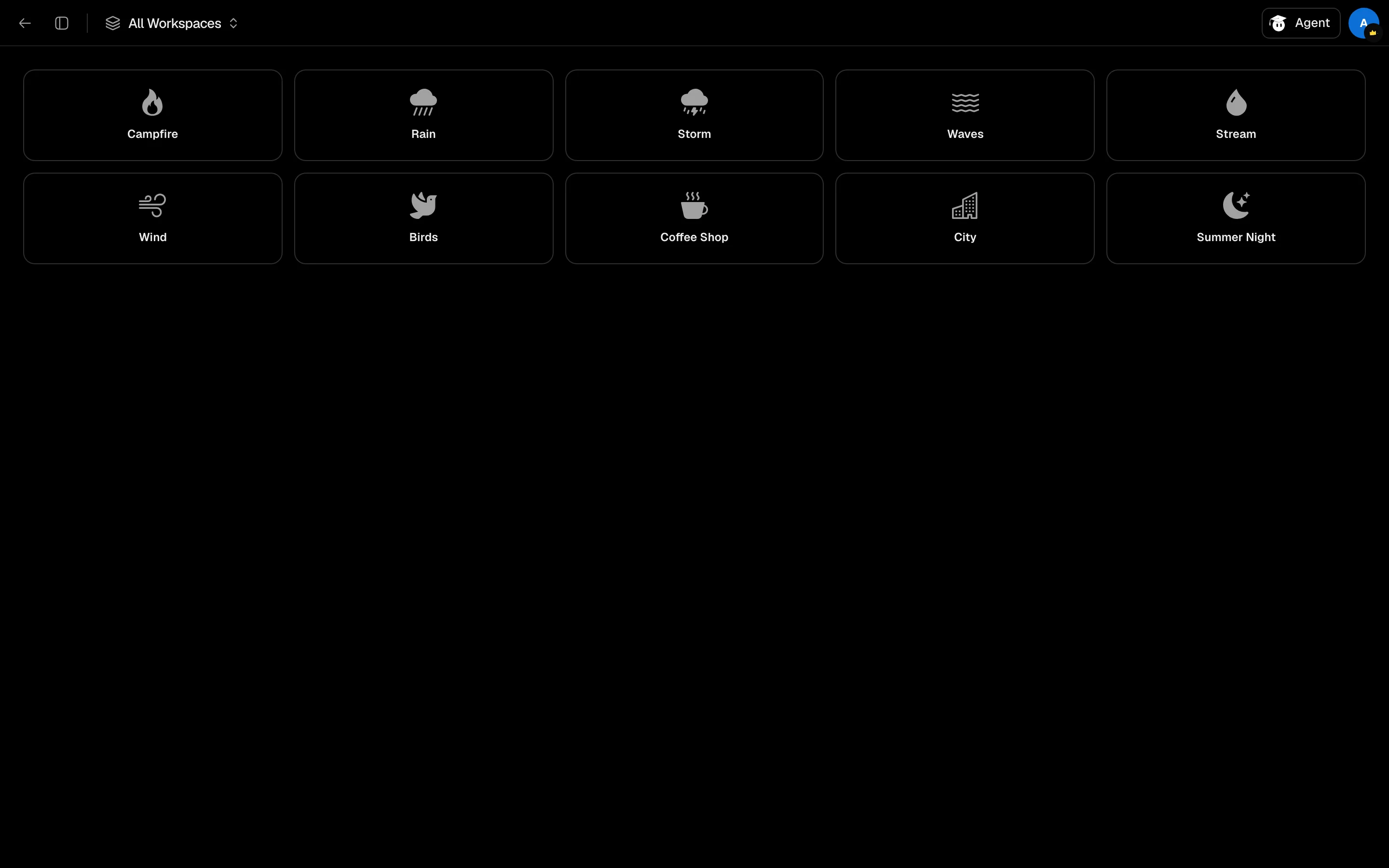
There are ten sounds: Campfire, Rain, Storm, Waves, Stream, Wind, Birds, Coffee Shop, City and Summer Night. Turn on as many as you like, each with its own volume (they start at 42). Stop all silences everything.
Sounds keep playing as you move between pages. A compact version is in the Study tools (telescope) menu in study sessions, and a dot on its icon shows something is playing.
Spotify
- Go to Settings, then Integrations, and click Connect on Spotify.
- Open Spotify Player from the command menu to show the floating player.
- Use Search to find tracks, or Playlists to browse yours.
- If music is playing on another device, click Play here to move it.
Playback control needs Spotify Premium. Without it the player shows "Spotify Premium required for playback control". If playlists do not load, click Reconnect. Click Disconnect in Integrations to remove access.