
Tiles and layouts
Use two tools at once in a study session, resize them, swap them and control everything from the keyboard.
Ova stranica još nije prevedena. Prikazuje se engleska verzija.
A session shows up to two tools at a time, each in its own tile. Put a quiz next to your notes, or flashcards next to a PDF, and keep both in view.
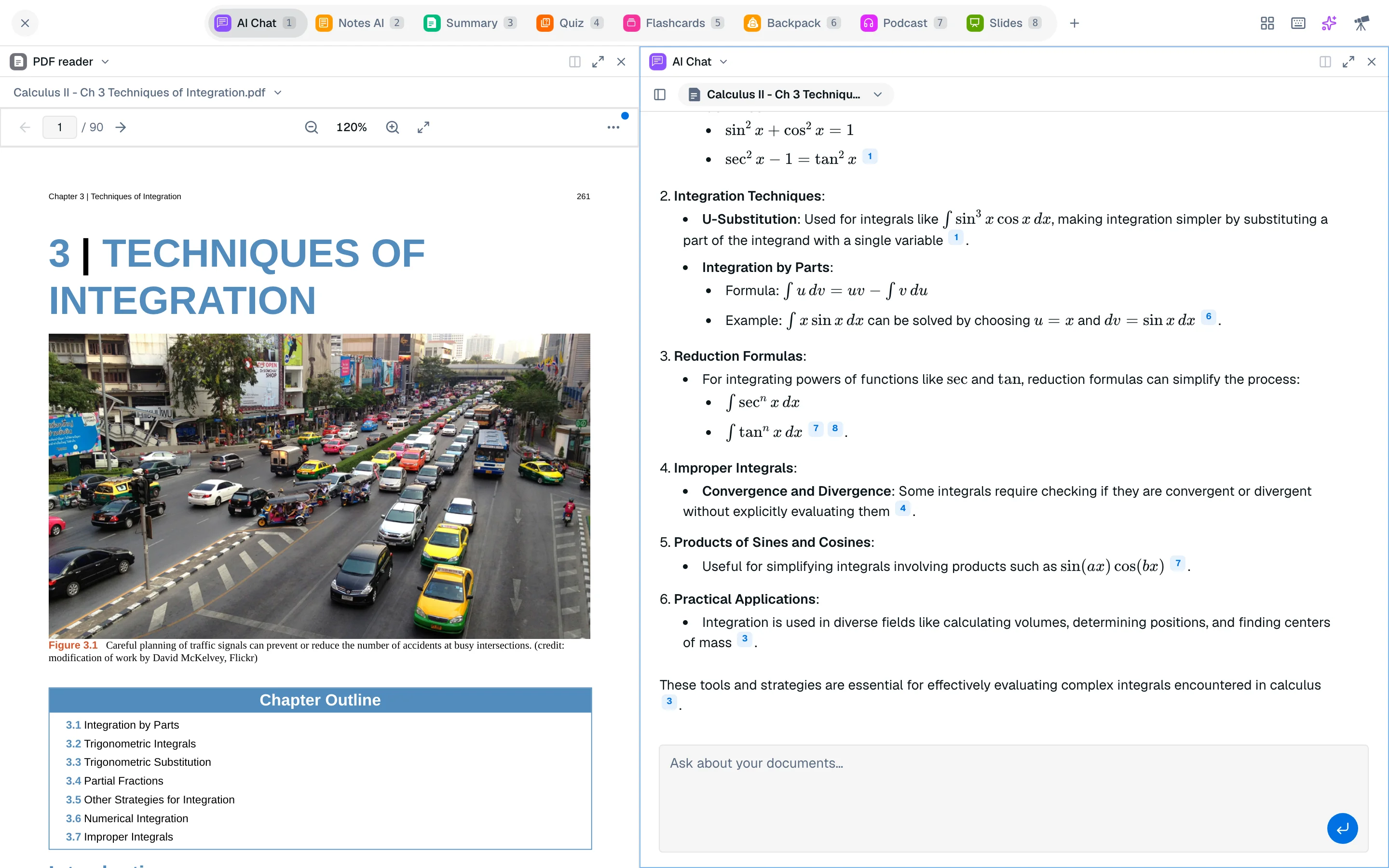
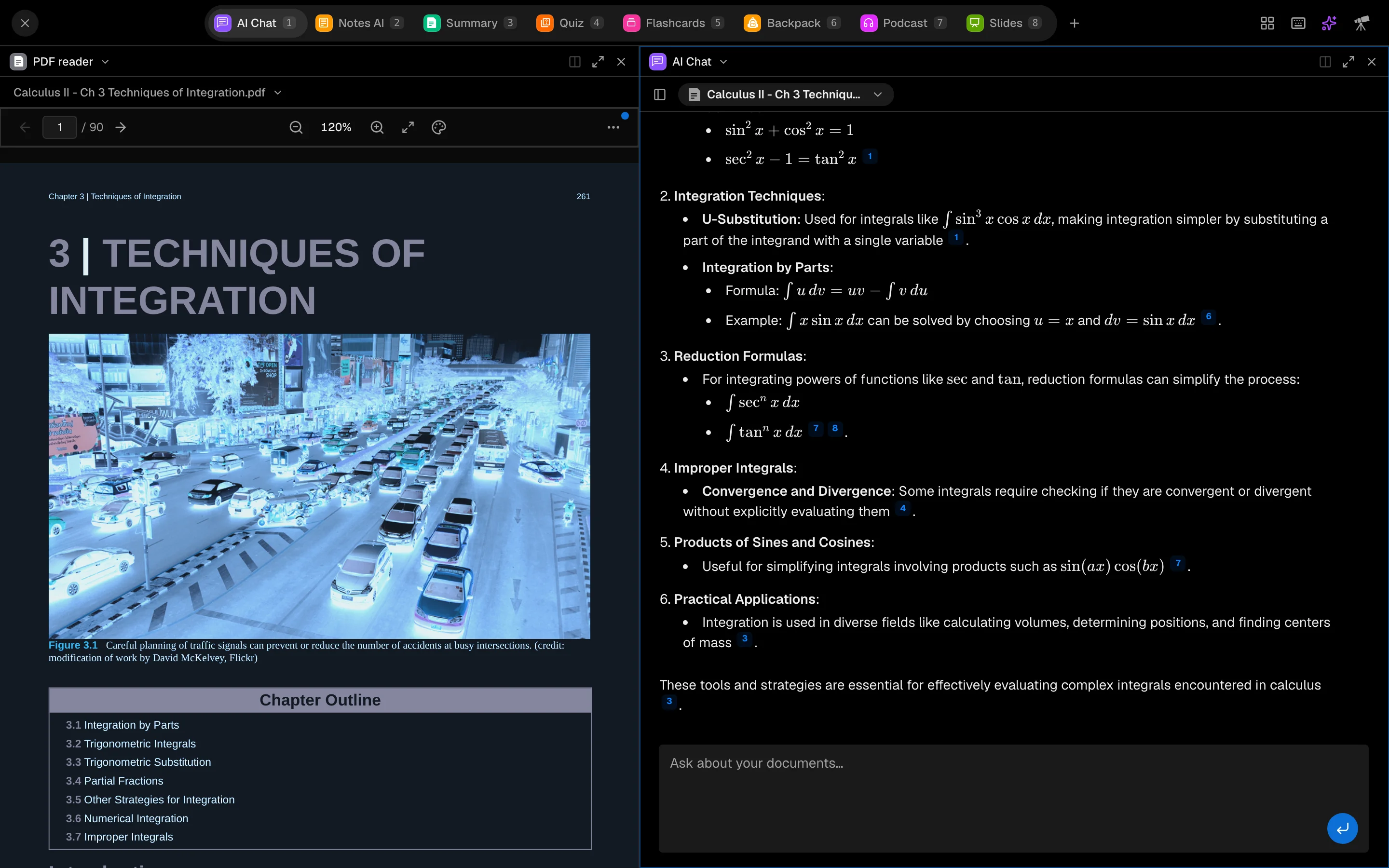
Open a second tile
A new session starts with one tile. To add another:
- Click Open beside in the tile header, or press Ctrl Alt D.
- The new tile is empty. Use the search box to find a tool and pick it.
You can also hold Shift and press a tool's number key (or Shift-click the tab) to open that tool in a second tile. Tiles are always side by side. Studycamp never stacks them or opens a third.
When two tiles are already open, opening another tool replaces the other tile instead of adding one.
Pick what each tile shows
Click the tool name in a tile header (Change tool) to switch that tile to another tool. Besides your session tabs, tiles can hold the PDF reader, Agent, Bots, Code Playground and Whiteboard AI, which are not session tabs.
Each tile keeps its own state: its selected files, and the quiz, deck, summary or note it has open. Changing the tool in one tile leaves the other alone.
Move, resize and swap
- Resize: drag the divider between the tiles.
- Swap: drag a tile's header onto the other tile.
- Maximize: click Maximize tile to fill the screen with one tile. Restore layout brings the split back.
- Close: click Close tile. The last tile cannot be closed.
Layout presets
Open the Layout menu in the top bar and choose:
- Single: keep only the focused tile.
- Two columns: focused tile on the left, the next tile on the right. If there is no second tile, an empty one opens.
The menu reminds you: "Up to 2 tools at a time."
Switch focus
The focused tile has a highlighted outline. Click a tile to focus it, or press Ctrl Alt with an arrow key to move to the neighbouring tile. Number keys always act on the focused tile.
Keyboard shortcuts
Press ? in a session (outside a text box) or click the keyboard button to see this list.
| Shortcut | Action |
|---|---|
| 1 to 8 | Open a tool in this tile |
| Shift + 1 to 8 | Open a tool in a new tile |
| Ctrl Alt D | Split right |
| Ctrl Alt W | Close tile |
| Ctrl Alt M | Maximize or restore tile |
| Ctrl Alt + arrow keys | Move between tiles |
The tile shortcuts use Ctrl Alt so they also work while you type in a chat box.
On a phone
Phones show one tile at a time and hide the layout menu. Your two-tile layout is kept and appears again on a larger screen.