
Study AI
Quizzes
Generate practice quizzes from your files, take them in exam mode and focus on what you missed.
This page is not translated yet. Showing the English version.
The Quiz tool builds questions from your files, grades your answers and keeps every attempt so you can see progress.
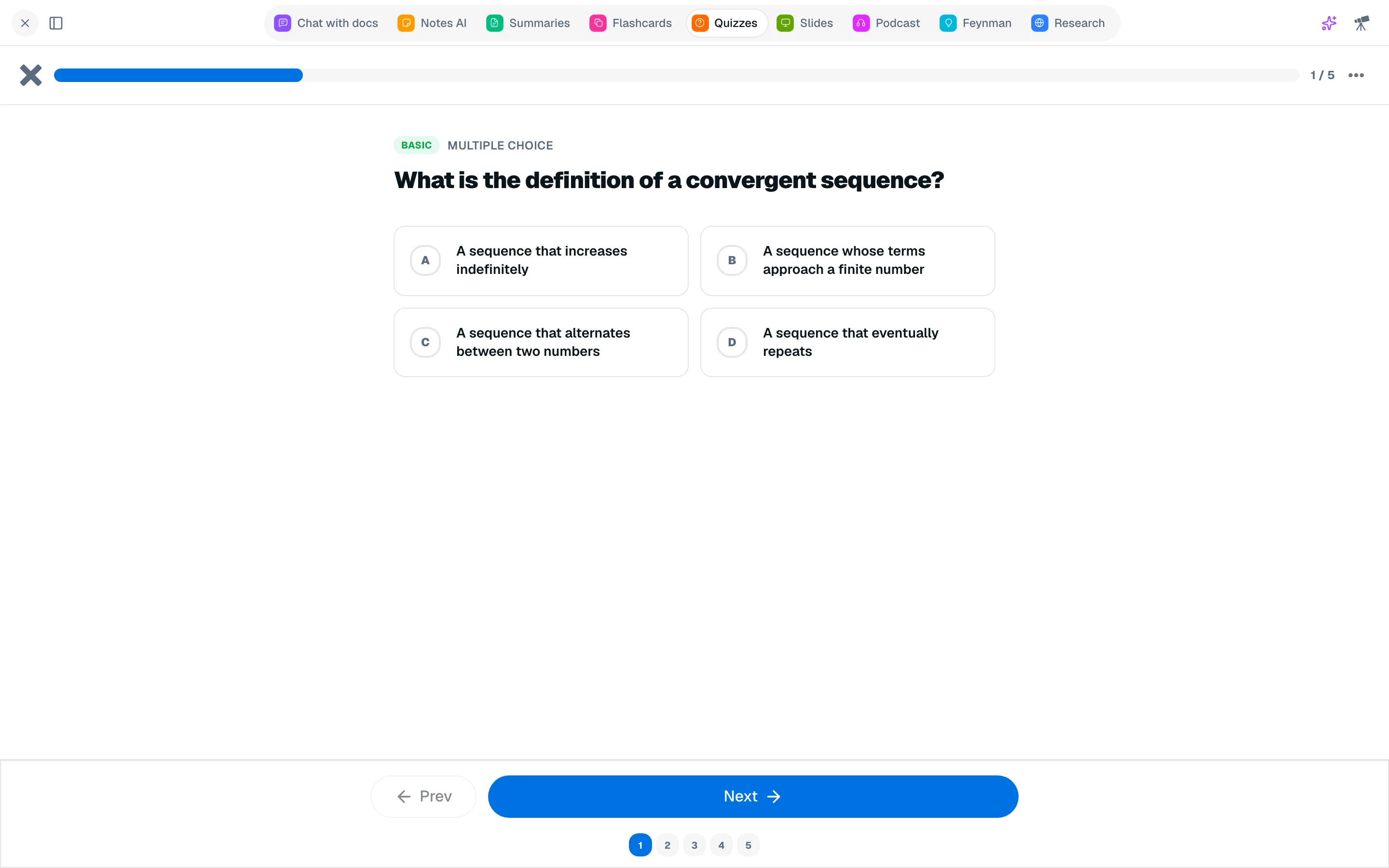
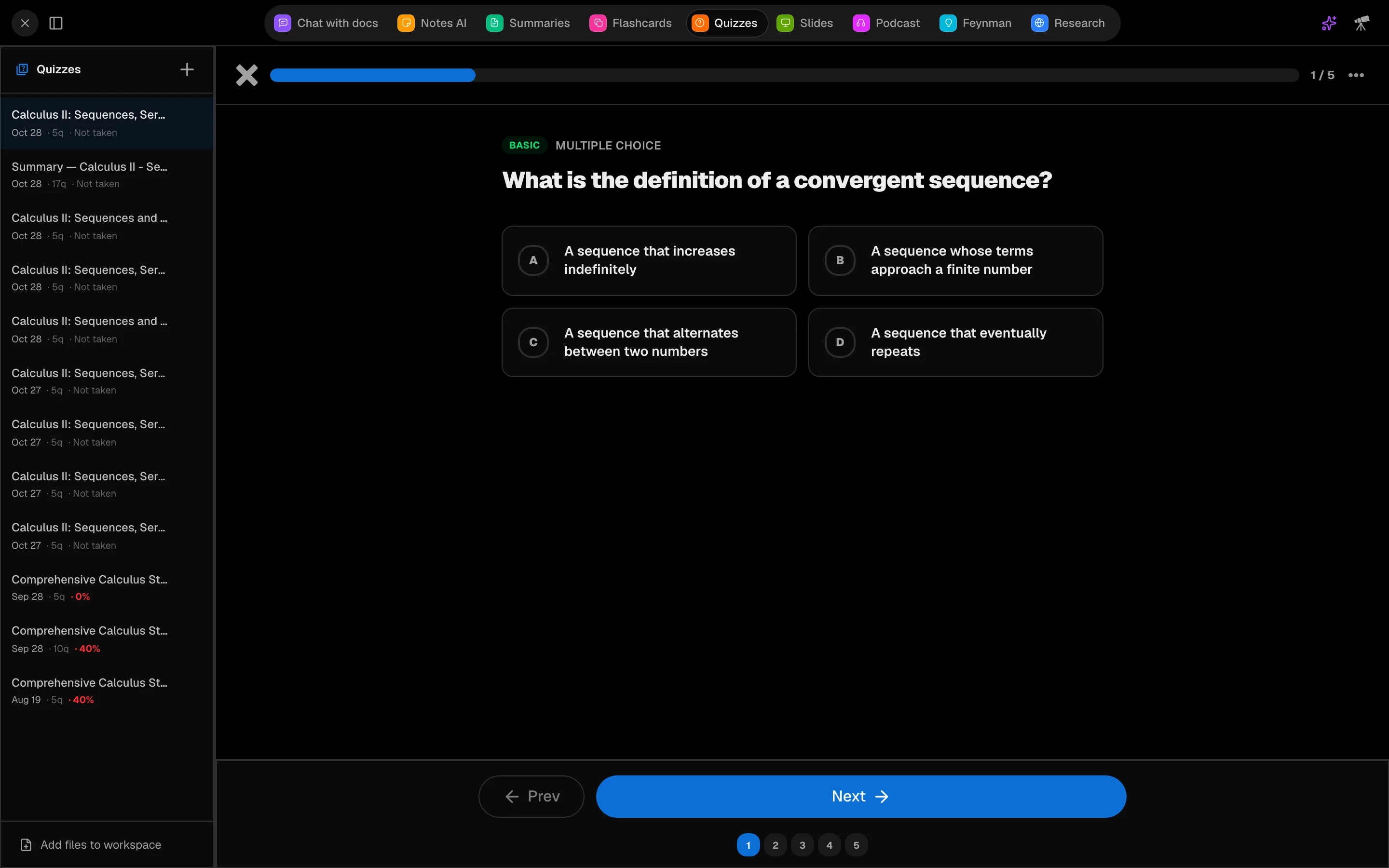
Generate a quiz
- In a session, open Quiz (key 4 by default).
- Under Source files, select the files.
- Choose the Number of questions (5, 10, 15, 20 or 30), Question type (Mixed, Multiple Choice, True / False, Open Ended) and Difficulty (Easy, Standard, Hard).
- Optionally turn on Exam mode: no feedback until all questions are answered.
- Click Generate and answer as questions arrive.
Answer and review
In practice mode, click Check to see if you were right, with the correct answer and an Explanation. Use Skip to come back later. In exam mode, click Submit Exam at the end. Open-ended answers are graded by AI.
You pass with a score of 75% or more. The results screen shows correct, wrong and skipped counts and Review all answers.
After a quiz
- Retake, Retake as exam or Retake as practice.
- Focus on what you missed builds a flashcard deck from your wrong answers.
- Quizzes can be part of a study chain: practice, exam, then a focus deck. See Study chains.
- Past quizzes lists every quiz with attempts, best score and average.
Summaries also include exam questions. See Summaries.
Cost
Generating a quiz costs 500 credits. Checking an open-ended answer costs 20.